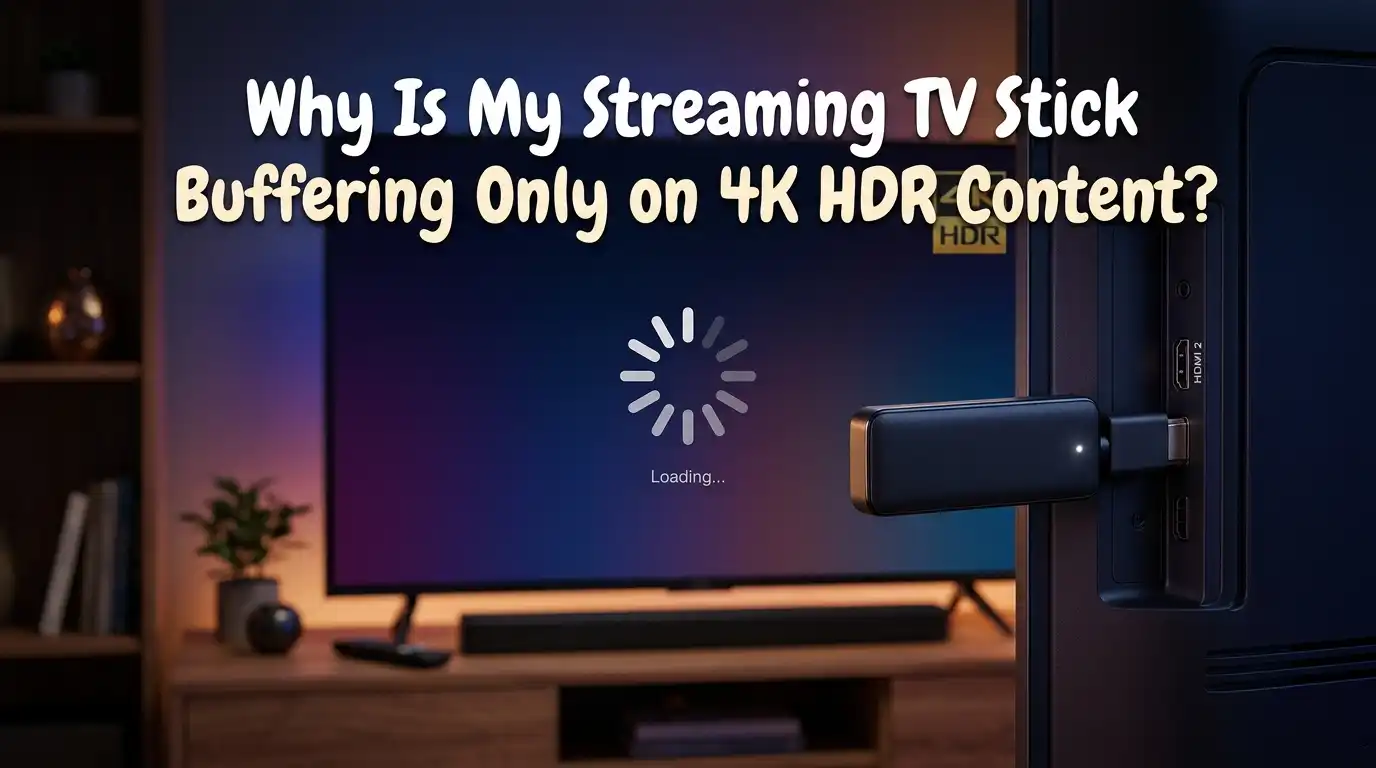
Why Is My Streaming TV Stick Buffering Only on 4K HDR Content?
You sit down, grab the remote, and press play on that brand new movie in glorious 4K HDR. Within seconds, the spinning wheel appears. The picture freezes.
You wait. It plays for a few seconds and then freezes again. But here is the strange part: switch that same movie to 1080p and it plays without a single hiccup.
If this sounds familiar, you are not alone. Thousands of streaming stick owners deal with this exact frustration every single day. The good news?
In a Nutshell
- 4K HDR content requires significantly more bandwidth than standard 1080p. Most streaming services recommend at least 25 Mbps of dedicated download speed for a smooth 4K stream.
- Your WiFi band matters more than you think. A 2.4 GHz connection often cannot deliver consistent speeds for 4K HDR. The 5 GHz band provides faster throughput but has a shorter range. If your streaming stick sits too far from the router on 5 GHz, packet loss causes buffering.
- Streaming sticks can overheat during intense 4K HDR playback. These small devices generate heat, and when they get too hot, they throttle performance. This thermal throttling is a common and overlooked cause of 4K buffering.
- Your HDMI input settings on the TV may be limiting the signal. Many TVs ship with HDMI ports set to “Standard” mode, which restricts the data that can pass through. Without switching to “Enhanced” mode, your TV may struggle to handle 4K HDR signals properly.
- Cached data and background apps eat into your stick’s limited memory. Streaming sticks have modest processors and small amounts of RAM. A cluttered cache forces the device to work harder, and 4K HDR decoding already pushes it to its limits.
- Your ISP may be throttling high bandwidth streaming traffic. Some internet providers intentionally slow down connections that consume large amounts of data. A VPN can help you confirm and bypass this type of throttling.
Understanding Why 4K HDR Demands So Much More
The difference between 1080p and 4K HDR is not just a sharper picture. A 4K resolution delivers four times the pixel count of 1080p. That alone means four times the data. Add HDR on top and the stream now carries expanded color information and higher bit depth, typically 10 bits per channel instead of 8.
This extra data pushes bitrates from around 5 Mbps for standard HD up to 15 to 25 Mbps for 4K HDR. Your streaming stick must download, decode, and display all of this data in real time without dropping frames. Any weakness in your setup that was invisible during 1080p playback becomes painfully obvious at 4K HDR.
Think of it like a highway. Regular traffic flows fine on two lanes. But quadruple the number of cars and you need a wider road, better exits, and more powerful engines to keep everything moving.
Check Your Internet Speed First
Before you change any settings, run a speed test directly on your streaming stick if possible, or on a phone connected to the same WiFi network. You need at least 25 Mbps of actual download speed for reliable 4K HDR streaming. Not the speed your ISP advertises, but the speed you actually get at the device.
Open a browser or use a built in network test tool on your device. Run the test at the same time you would normally watch content. Speeds fluctuate throughout the day, and peak evening hours often bring the worst performance.
If your speed falls below 25 Mbps, the fix might be as simple as upgrading your internet plan or reducing the number of devices sharing the connection.
Pros: Easy to check, costs nothing, and often reveals the root cause immediately.
Cons: Speed tests only show a snapshot and may not reflect sustained throughput during streaming.
Switch to the 5 GHz WiFi Band
Most modern routers broadcast two networks: a 2.4 GHz band and a 5 GHz band. The 2.4 GHz band is slower and more congested because it shares frequency space with microwaves, baby monitors, Bluetooth devices, and dozens of neighboring WiFi networks.
The 5 GHz band offers faster speeds and less interference. For 4K HDR streaming, this is the band you want. Go into your streaming stick’s WiFi settings and connect to the 5 GHz network. It usually shows up as your network name with “5G” or “5GHz” at the end.
However, 5 GHz signals do not travel as far and struggle to pass through thick walls. If your router is far from the streaming stick, you may actually get worse performance on 5 GHz. In that case, move the router closer or consider a WiFi extender or mesh system.
Pros: Faster speeds, less interference from household devices, better for high bandwidth streaming.
Cons: Shorter range, weaker signal through walls and floors.
Move Your Router or Use an Ethernet Adapter
Physical distance between your router and streaming stick matters enormously for 4K HDR. Every wall, floor, and large appliance between the two weakens the WiFi signal. A streaming stick tucked behind a TV in a different room from the router is fighting an uphill battle.
Move your router to a more central location if possible. Remove physical obstructions. Even shifting the router a few feet can make a noticeable difference.
For the most reliable connection, use an Ethernet adapter designed for your streaming stick. A wired connection eliminates WiFi interference entirely and delivers consistent speeds. Note that some Ethernet adapters for streaming sticks are limited to 100 Mbps, but this is still more than enough for 4K HDR streaming.
Pros: Ethernet provides rock solid, consistent speeds with no interference.
Cons: Requires running a cable to your TV area, and some adapters cap speeds at 100 Mbps.
Clear the Cache and Close Background Apps
Streaming sticks come with limited processing power and memory. Over time, apps store cached data that eats into available RAM. When your device tries to decode a heavy 4K HDR stream with barely any free memory, buffering is the result.
Go to your device settings and find the application management section. Select each streaming app and clear its cache. On a Fire TV Stick, this is under Settings, then Applications, then Manage Installed Applications. On Roku, a system restart clears the cache automatically.
Also close any apps running in the background. Even if you are not watching them, background apps consume memory and processing cycles that your stick desperately needs for 4K playback.
Pros: Free, quick, and often provides an immediate improvement.
Cons: You may need to log back into apps after clearing data, and the cache builds up again over time.
Prevent Your Streaming Stick From Overheating
This is one of the most overlooked causes of 4K HDR buffering. Streaming sticks generate heat, and decoding 4K HDR content pushes the processor hard. When the internal temperature gets too high, the device slows itself down to prevent damage. This thermal throttling causes stuttering and buffering.
If your stick plugs directly into an HDMI port on the back of your TV, it sits in a tight, poorly ventilated space that traps heat. Use the HDMI extender cable that came in the box. This small cable moves the stick away from the TV and allows air to circulate around it.
Keep the stick out of enclosed cabinets. Do not stack anything on top of it. If your room runs warm, consider pointing a small fan toward the entertainment center. These simple steps can prevent thermal throttling and restore smooth 4K playback.
Pros: Addresses a hidden cause that many users never consider.
Cons: Some setups make it difficult to give the stick proper ventilation.
Enable Enhanced HDMI Signal Format on Your TV
Many televisions ship with HDMI ports set to a “Standard” signal format. This setting limits the amount of data that can pass through the HDMI connection. Standard mode works fine for 1080p content, but 4K HDR requires the full bandwidth of an enhanced HDMI signal.
On Sony TVs, go to Settings, then Channels and Inputs, then External Inputs, then HDMI Signal Format, and change the relevant port to Enhanced. Samsung TVs call this “Input Signal Plus.” LG TVs label it “HDMI Ultra HD Deep Color.” The names differ, but the concept is the same.
Without this setting enabled, your TV may downgrade the HDR signal or fail to display it properly. This mismatch between what the stick sends and what the TV accepts can cause repeated buffering as the devices negotiate the signal.
Pros: Unlocks the full potential of your HDMI connection for free.
Cons: The setting name varies by TV brand, which can make it confusing to find.
Use a High Speed HDMI Cable
Not all HDMI cables are created equal. Older HDMI 1.4 cables cannot carry enough data for 4K HDR at 60 frames per second. You need at least an HDMI 2.0 cable, and ideally an HDMI 2.1 cable if your TV supports it.
A cable that worked perfectly for your old 1080p setup may choke on a 4K HDR signal. The cable might look fine and feel sturdy, but its internal wiring determines how much data it can handle. Look for cables labeled “High Speed” or “Ultra High Speed” with HDMI certification.
If your streaming stick came with a short HDMI extender, check its rating as well. A bottleneck anywhere in the cable chain limits the entire connection.
Pros: A one time purchase that solves a permanent hardware limitation.
Cons: Identifying the right cable can be confusing given misleading marketing.
Check for ISP Throttling
Some internet service providers slow down your connection when they detect heavy streaming traffic. This practice is called bandwidth throttling, and it hits 4K HDR streams harder because they consume the most data.
To test for throttling, run a regular speed test first. Then connect through a VPN and run the speed test again. If your speeds are significantly faster through the VPN, your ISP is likely throttling your streaming traffic.
A VPN encrypts your data so your ISP cannot see what you are doing. This prevents them from selectively slowing down streaming. However, a VPN can also add some latency, so choose a fast provider with servers close to your location.
Pros: Identifies and solves a problem that no amount of device tweaking can fix.
Cons: A good VPN service costs a monthly fee, and a slow VPN may introduce its own buffering.
Update Your Streaming Stick Firmware and Apps
Outdated software can cause buffering problems, especially with 4K HDR content. Manufacturers regularly release firmware updates that improve video decoding performance, fix memory leaks, and optimize WiFi connectivity.
Go to your device settings and check for system updates. Install any available updates and restart the device. Then open each streaming app and check for app updates in your device’s app store.
Sometimes a specific app version has a known bug with 4K HDR playback. Updating to the latest version often resolves these issues. If an update recently caused new problems, check community forums to see if other users report the same issue and whether a fix is incoming.
Pros: Keeps your device running at peak performance with the latest optimizations.
Cons: Occasional updates can introduce new bugs, though this is uncommon.
Change Your DNS Settings
Your streaming stick uses DNS servers to find and connect to streaming content servers. The default DNS servers from your ISP are often slow and inefficient. Switching to a faster public DNS can reduce the time it takes to establish connections and may improve streaming stability.
Popular free options include Google DNS at 8.8.8.8 and 8.8.4.4 or Cloudflare DNS at 1.1.1.1 and 1.0.0.1. You can change DNS settings on your router to apply the change to every device, or set it directly on your streaming stick if the option exists.
This fix does not increase your raw download speed, but it can reduce latency and connection errors that contribute to buffering during 4K HDR playback.
Pros: Free, easy to set up, and benefits all connected devices if done at the router level.
Cons: The improvement may be minimal if your ISP’s DNS was already performing well.
Consider Upgrading Your Streaming Device
If you have tried every fix and still experience 4K HDR buffering, your streaming stick may simply lack the processing power to handle the workload. Older or budget streaming sticks often have weaker processors and less RAM. These devices were designed during a time when 4K HDR was less common and less demanding.
Newer streaming devices come with faster processors, more RAM, dedicated video decoding chips, and WiFi 6 or WiFi 6E support. These improvements make a real difference for 4K HDR performance. Devices with built in Ethernet ports also eliminate the need for adapters.
Before buying, research which current devices handle 4K HDR best based on independent reviews and user feedback. An upgrade can be the permanent solution after you have exhausted all other options.
Pros: Solves hardware limitations permanently with modern, capable hardware.
Cons: Costs money and requires migrating your apps and settings to a new device.
Frequently Asked Questions
Why does my streaming stick buffer on 4K but not on 1080p?
4K HDR content requires roughly four to five times more bandwidth and processing power than 1080p. Your stick may handle 1080p fine but hit its limits with the much higher data demands of 4K HDR. Network speed, device processing power, heat, and HDMI settings can all create bottlenecks that only show up at higher resolutions.
How much internet speed do I need for 4K HDR streaming?
You need at least 25 Mbps of sustained download speed for reliable 4K HDR streaming. Netflix, Amazon, and Disney Plus all recommend this minimum. If multiple devices share your network, you need even more total bandwidth to keep the 4K stream running smoothly.
Can an HDMI cable cause 4K HDR buffering?
Yes. An older HDMI cable rated below HDMI 2.0 may not carry enough data for a 4K HDR signal. This can cause the streaming stick and TV to repeatedly renegotiate the signal, leading to buffering and dropouts. Use a certified High Speed or Ultra High Speed HDMI cable for best results.
Does clearing the cache really help with buffering?
Clearing the cache frees up RAM and storage on your streaming stick. Since 4K HDR decoding uses significant processing resources, having more free memory available lets the device focus on playback instead of managing old cached files. It is a quick fix that often makes a noticeable difference.
Will a VPN fix my 4K buffering problem?
A VPN fixes buffering only if your ISP is throttling your streaming traffic. If your ISP slows down high bandwidth video, a VPN hides what you are doing and prevents selective throttling. However, if the problem is your WiFi, hardware, or cable, a VPN will not help and could actually make things slightly worse due to added latency.
Should I use Ethernet instead of WiFi for my streaming stick?
An Ethernet connection provides stable and consistent speeds without the interference and signal drops common with WiFi. If 4K HDR buffering is a recurring problem, switching to a wired Ethernet connection through an adapter is one of the most reliable fixes available. It removes WiFi as a variable entirely.

Hi, I’m Archie Flynn, the founder and writer behind RapidResizerHub! 👋 I’m a passionate tech enthusiast who loves exploring the latest gadgets, smart devices, and trending electronics on Amazon. Through my honest, hands-on reviews and detailed buying guides, I help readers make smarter, well-informed shopping decisions.