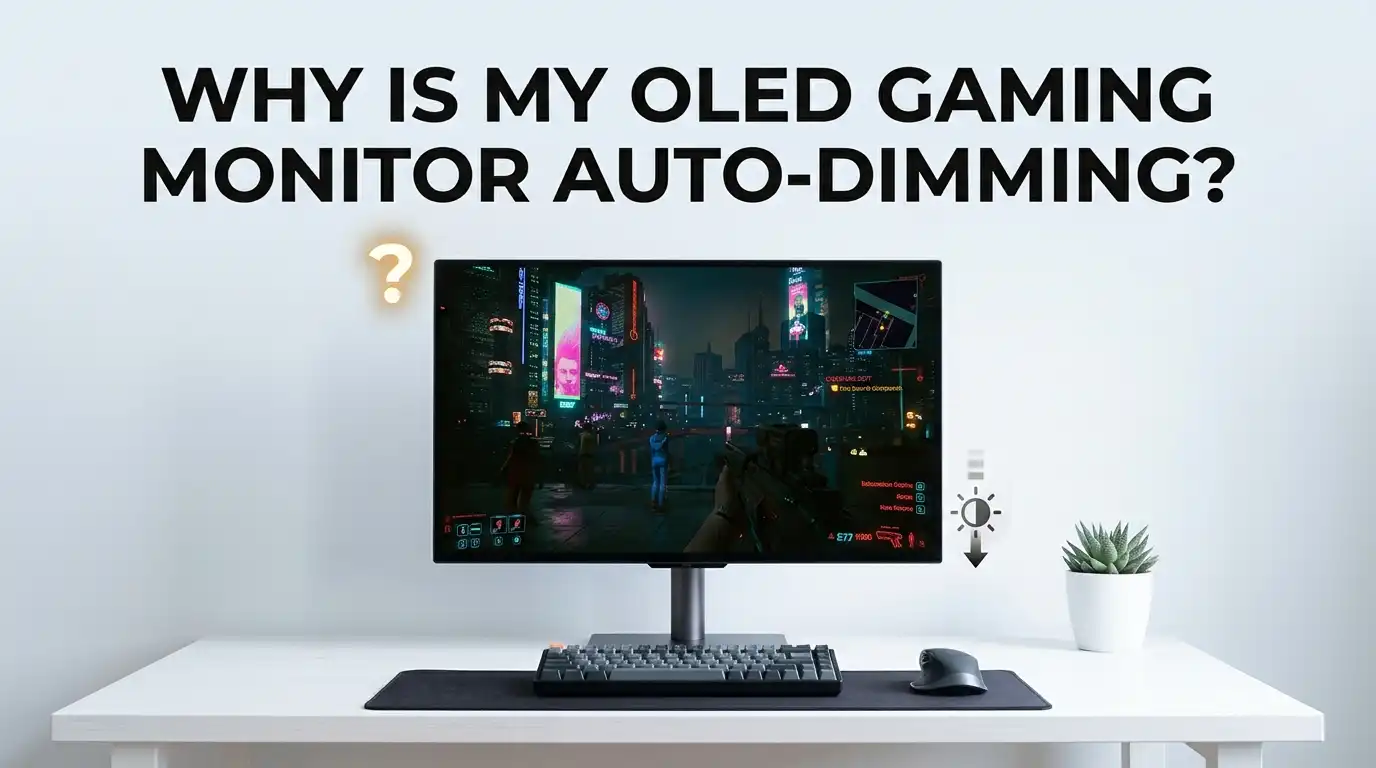
Why Is My OLED Gaming Monitor Auto-Dimming?
You sit down for a long gaming session. The screen looks stunning at first. Then, a few minutes in, the brightness drops. A bright snow level dims. A dark dungeon fades even darker.
You did not touch any settings, yet the picture keeps shifting on its own. This problem frustrates almost every OLED owner at some point.
The good news is that you can control most of it. This guide explains why your OLED gaming monitor auto-dims so aggressively, and it gives you clear, step-by-step fixes you can apply today.
In a Nutshell:
- Auto-dimming on OLED comes from several different features, not just one. The main culprits are ABL (Auto Brightness Limiter), ASBL/TPC (Auto Static Brightness Limiter), and logo or pixel protection features. Each behaves differently.
- ABL is a hard physics limit and cannot be turned off. It dims large bright scenes because OLED panels cannot light up the whole screen at full power. You can only work around it, not delete it.
- ASBL and TPC dim the screen when content stays static. This is the feature that frustrates gamers most in dark, slow scenes. Many monitors let you reduce or disable it through the menu.
- A consistent, moderate brightness setting reduces visible dimming. If you run the panel lower from the start, the protection features have less reason to step in.
- Firmware updates and the right picture mode often fix aggressive behavior. Manufacturers refine these algorithms over time, so an update can make a real difference.
- You can keep image quality and protect against burn-in at the same time. Smart settings give you both, so you rarely need to choose one over the other.
Understanding What “Auto-Dimming” Really Means on OLED
Many people use the word “dimming” for one problem, but OLED monitors actually dim for several separate reasons. Understanding the difference is the first real fix.
When the whole screen darkens after a few minutes of static content, that is usually ASBL or TPC. When a large bright area dims the moment it appears, that is ABL. When only a small corner with a logo darkens, that is logo protection or GSR.
Each of these features uses a different trigger. ABL reacts to how much of the screen is bright. ASBL reacts to how long an image stays the same. Once you can name the behavior you see, you can target the correct setting. Guessing wastes time and often makes things worse.
Why ABL Dims Your Bright Scenes (And Why You Cannot Fully Stop It)
ABL stands for Auto Brightness Limiter. It exists because of how OLED panels work at a physical level. Every pixel produces its own light, so a full bright screen needs huge power.
The panel cannot supply that power safely, so it lowers brightness as more of the screen lights up. A small bright highlight can hit peak brightness, but a large white scene drops sharply.
This is why a snowy field or a bright sky looks dimmer than a small explosion. The panel measures the Average Picture Level, or APL, and adjusts in real time. Here is the part people dislike: you cannot disable ABL, even in a service menu. It is a power and heat limit built into the hardware itself.
Pros of ABL: it protects the panel and keeps power and heat safe.
Cons of ABL: bright full-screen scenes look weaker, and you have no off switch.
How ASBL and TPC Cause That Slow Fade During Gameplay
ASBL means Auto Static Brightness Limiter, and LG calls its version TPC (Temporal Peak Luminance Control). This is the feature behind that slow, creeping fade you notice in calm or dark game moments. The monitor watches for static content. If the image barely changes for a short time, the panel assumes you left it idle and dims to reduce burn-in risk.
The problem is that games often have slow scenes that are not truly static. A quiet dungeon, a paused menu, or a dark loading area can fool the system. The monitor then dims when it really should not. When the action picks back up, the brightness jumps back, which feels jarring.
Pros of ASBL/TPC: it lowers burn-in risk during long idle moments.
Cons of ASBL/TPC: it triggers wrongly in slow gameplay and creates distracting fades.
Step-by-Step: Adjust Your Monitor’s OSD Settings First
Your monitor’s on-screen display menu holds the fastest fixes. Start here before changing anything on your PC. Press the menu button, usually a small joystick behind the panel, and look for a section named OLED Care, Panel Protection, or Image Care.
Follow these steps in order:
- Open the OSD menu and find the OLED protection or care section.
- Look for a “Uniform Brightness” or “Brightness Stabilizer” option and turn it on if your panel offers it.
- Find “Static Brightness” or “ASBL” controls and reduce or disable them where allowed.
- Lower logo protection strength if a corner of your screen dims oddly.
- Save the profile so the settings stick after a restart.
Many monitors hide these under different names, so check every submenu. Brands like ASUS, MSI, and LG each label these features differently, but the logic stays the same.
Turn On Uniform Brightness Mode for Steady SDR Gameplay
Uniform Brightness is one of the best tools you have, and many gamers ignore it. This mode locks your SDR brightness to a steady level no matter how the APL changes. In simple terms, the screen no longer brightens for small windows or dims for large ones. The brightness you set stays the same across the whole image.
MSI, ASUS, and several other brands include this feature. On MSI OLED panels, SDR brightness holds around 200 to 250 nits with Uniform Brightness on, so you avoid the constant brightness swings. This is ideal for desktop work, esports titles, and any game with a stable interface. It removes most of the visible flicker and fade you notice during normal play.
Pros: it creates a calm, consistent image and stops distracting brightness shifts.
Cons: you lose the extra punch of peak brightness in small bright highlights, so HDR content may look slightly flatter.
Run a Lower, Consistent Brightness to Reduce Trigger Points
This trick sounds backward, but it works very well. If you run your panel at a high brightness, the protection features have more reason to step in. The monitor wants to pull you back to a safer level, so it dims you over time. You end up fighting the panel for the first few minutes of every session.
Instead, set a comfortable brightness from the start and leave it there. A level around 120 to 150 nits suits most rooms with normal light. At this level, the panel rarely needs to dim further, because you already sit in the safe zone. You get a steady picture and you also lower long-term burn-in risk.
Pros: steady image, lower burn-in risk, and fewer surprise fades.
Cons: the screen looks less dazzling in very bright rooms, so this suits darker spaces better.
Update Your Monitor Firmware to Fix Buggy Dimming
Firmware controls how the dimming algorithms behave, and early firmware is often too aggressive. Manufacturers release updates that calm these features down and improve scene detection. A single update can transform a monitor that dims constantly into one that behaves well.
Check your brand’s support page for the exact monitor model. Most updates install through a USB stick or a desktop app provided by the brand. Read the steps carefully, since a failed firmware flash can harm the monitor. Always keep the power stable during the process and never unplug mid-update.
Pros: it fixes bugs directly at the source and often improves picture quality too.
Cons: the process carries a small risk, and not every monitor receives regular updates.
Tweak Windows and GPU Settings That Affect Brightness
Sometimes the dimming is not the monitor at all. Your PC can change brightness without you knowing. Windows includes features that adjust the picture, and your graphics driver adds more on top. These can stack with the monitor’s own behavior and make things worse.
Check these settings:
- Turn off “Content Adaptive Brightness Control” (CABC) in Windows display settings if it appears.
- Disable “Night Light” if your screen looks warmer and dimmer at certain hours.
- Open your GPU control panel and switch off any dynamic contrast or adaptive brightness option.
- Set your power plan to High Performance, since power saving modes can dim the display.
On laptops with OLED panels, battery saver mode dims the screen hard. Plug into power or disable adaptive brightness to keep a steady image.
Pick the Right Picture Mode for Gaming
Your picture mode changes how the dimming features act. Some modes apply heavy processing and aggressive protection, while others stay clean. A “Game” or “Gaming” preset usually reduces input lag and often softens the dimming behavior compared to a cinema or vivid mode.
Try each mode and watch how it handles a dark scene. Avoid “Eco” or “Power Saving” presets, because they exist to dim the screen on purpose. A “Standard,” “Custom,” or “User” mode often gives you the most control, since it unlocks more menu options. Once you find a mode that behaves well, save it and use it for all your gaming.
Pros: the right mode fixes dimming without any risk and improves color and lag.
Cons: some modes lock certain settings, so you may trade flexibility for performance.
Handle HDR Dimming Without Killing Image Quality
HDR is where ABL shows itself the most. In HDR mode, the panel pushes peak brightness on small highlights, then drops hard on large bright scenes. This swing is normal, but poor calibration makes it look extreme. The fix is proper HDR setup, not turning HDR off.
Run the Windows HDR Calibration tool to set your true peak brightness. This stops the system from sending values the panel cannot reach, which reduces ugly clipping and odd dimming. Choose an HDR mode like “True Black 400” for accurate dark detail, or a peak mode if you want maximum highlight punch in a bright room.
Pros: calibrated HDR looks accurate and smooth, with fewer jarring jumps.
Cons: calibration takes a few minutes, and ABL swings still remain to some degree.
Use Service Menu Options Only as a Last Resort
Some OLED displays, especially OLED TVs used as monitors, let you disable ASBL and GSR through a hidden service menu. This is powerful, but it carries real risk. You need a special access code, and a wrong change can damage settings or void your warranty.
On many LG OLED panels, the service menu code is 0413, and the dimming options sit under the OLED section. Only consider this if your monitor offers no normal setting and the dimming ruins your experience. If you do try it, change only the one setting you need and write down the original value first.
Pros: it can fully remove the dimming that no menu allows you to touch.
Cons: it may void your warranty, raise burn-in risk, and harm the display if done wrong.
Protect Against Burn-In While You Reduce Dimming
When you reduce dimming features, you take on more responsibility for burn-in protection. The dimming exists to guard the panel, so you should replace that guard with smart habits. The good news is that these habits work better than the dimming anyway.
Follow these steps:
- Run the built-in pixel refresh cycle when your monitor suggests it.
- Hide the taskbar so static icons do not sit in one place for hours.
- Use a dark desktop wallpaper and dark app themes to lower static bright pixels.
- Turn on a screensaver for idle moments instead of leaving a frozen image.
- Keep brightness moderate, since lower brightness slows pixel wear.
These actions protect your panel far better than letting it dim randomly during play.
FAQs
Why does my OLED monitor dim only during dark scenes in games?
This is the ASBL or TPC feature reacting to low APL and slow change. It thinks the dark, calm scene is a static image and dims to prevent burn-in. Reduce or disable the static brightness limiter in your menu, and the problem usually fades.
Can I completely turn off auto-dimming on my OLED monitor?
You can disable some features, but not all. ASBL, TPC, and logo protection can often be reduced or switched off. However, ABL is a hardware limit and cannot be turned off, even through a service menu, because it protects the panel from power and heat overload.
Will reducing dimming features ruin my monitor with burn-in?
Not if you stay sensible. Running a moderate brightness and following good habits protects the panel well. Hide static elements, use pixel refresh cycles, and keep brightness in a comfortable range. These steps offer stronger protection than random dimming ever did.
Does turning on HDR make the auto-dimming worse?
HDR makes ABL more visible because the panel pushes higher peak brightness. Large bright scenes then dim more noticeably than in SDR. Calibrate HDR properly with the Windows tool and pick an accurate HDR mode to keep the swings smooth and controlled.
Is aggressive dimming a sign that my monitor is faulty?
Usually not. Most aggressive dimming is normal OLED behavior, not a defect. If the dimming is sudden, extreme, or paired with flicker that settings and firmware cannot fix, then contact your manufacturer, since that may point to a hardware issue.

Hi, I’m Archie Flynn, the founder and writer behind RapidResizerHub! 👋 I’m a passionate tech enthusiast who loves exploring the latest gadgets, smart devices, and trending electronics on Amazon. Through my honest, hands-on reviews and detailed buying guides, I help readers make smarter, well-informed shopping decisions.