Why Is My Graphics Card Not Detected In Device Manager?
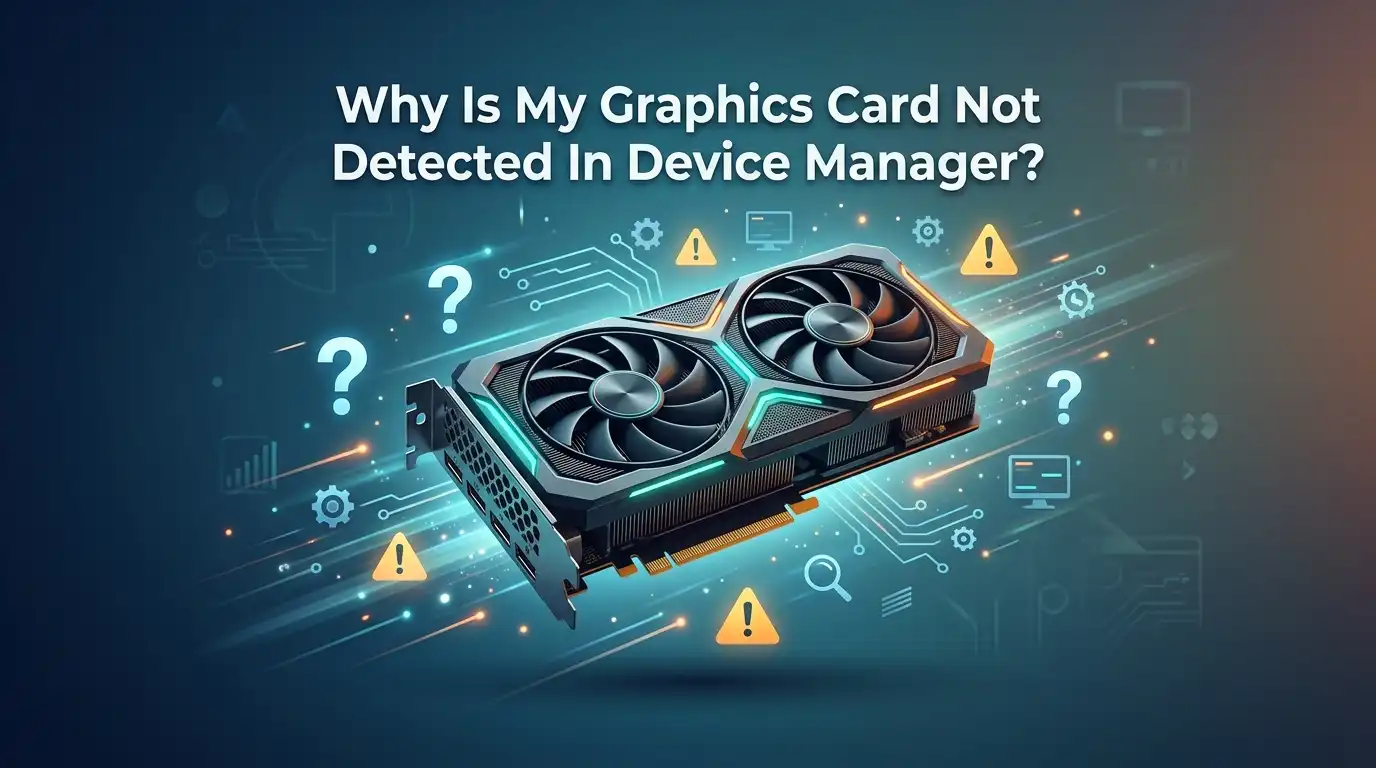
Your graphics card powers everything you see on screen, from games to video editing to simple web browsing. So when it vanishes from Device Manager, panic sets in fast. You open the panel, scroll down, and the card just is not there.
Maybe you see only your integrated graphics. Maybe you see a yellow warning sign. Maybe the slot looks empty even though the card sits snugly inside your case.
The good news is simple. Most of the time this problem comes from software, loose connections, or a quick setting you missed. A dead card is the rare case, not the common one.
Key Takeaways
- Loose hardware is the top cause. A graphics card that shifts even slightly in its slot can disappear from Device Manager. Reseating the card fixes a huge number of cases.
- Driver problems hide your card often. A corrupt, outdated, or half installed driver can stop Windows from listing the GPU. A clean driver reinstall solves this fast.
- Always check “Show hidden devices” first. Your card may already sit in Device Manager but stay invisible. This one click saves hours of worry.
- BIOS settings control detection at the deepest level. The wrong primary display setting or a disabled PCIe slot can erase your card before Windows even starts.
- Power matters more than people think. A missing or weak PCIe power cable stops the card from turning on, which means no detection anywhere.
- A BIOS update or CMOS reset is your last software step. When everything else fails, refreshing the motherboard firmware often restores card recognition.
Understand What Device Manager Detection Really Means
Device Manager is the map of every piece of hardware in your computer. When your graphics card shows up there, Windows knows it exists and can talk to it. When the card is missing, Windows either cannot see the hardware at all or cannot load the right software for it.
There are two separate problems hiding here. The first is a hardware detection failure, where the card is not physically recognized.
The second is a driver failure, where the card is present but Windows lists it wrong or hides it. Knowing which one you face changes your fix.
If the card is missing from BIOS too, the problem is hardware. If it shows in BIOS but not Windows, the problem is almost always drivers or software. Keep this split in mind as you work through the steps below.
Check for Hidden Devices in Device Manager First
Sometimes your card is already there, just hidden from view. This happens after a driver update or a Windows change. Before you open your case, try this quick trick. It takes ten seconds and solves the problem more often than you would expect.
Open Device Manager by right clicking the Start button. Click the View menu at the top. Select Show hidden devices. Now look under “Display adapters” and “Other devices.”
Your card may suddenly appear, sometimes with a faint or grayed out icon. If it shows with a yellow triangle, that points to a driver issue you can fix next.
Pros: This method is instant, free, and risk free. You change nothing physical. Cons: It only reveals a card that Windows already sees on some level. If the hardware itself is dead or unseated, this step alone will not help.
Restart Your Computer and Scan for Hardware Changes
Never skip the restart. A fresh boot clears temporary glitches that can hide your card. Windows sometimes loses track of hardware after sleep, updates, or a crash. A simple reboot forces the system to look again.
After restarting, open Device Manager once more. Click the Action menu at the top. Choose Scan for hardware changes. This tells Windows to recheck every connected part right away.
The card may pop back into the list, often under “Display adapters.” If it appears with a warning icon, move on to the driver steps. This refresh acts like waking Windows up and telling it to recount everything it owns.
Pros: Fast, safe, and needs no tools or downloads. It often fixes cards lost after updates. Cons: It will not detect a card with a loose connection or a power problem, since those issues live below the software level.
Reseat Your Graphics Card in the PCIe Slot
This is the single most powerful fix for a missing card. Over time, vibration, heat, or even moving your PC can shift the card just enough to break the connection. Reseating means taking the card out and pushing it back in firmly.
Power off your PC fully and unplug it from the wall. Open the case side panel. Find the PCIe slot where your card sits. Unlock the small latch at the end of the slot.
Gently remove the card, then push it straight back down until you hear or feel a solid click. Make sure no gold contacts are showing along the bottom edge.
Pros: This fixes a large share of detection failures and costs nothing. It targets the most common root cause directly. Cons: You must open your case, which feels scary for first timers. Static can damage parts, so touch a metal surface first to ground yourself.
Try a Different PCIe Slot
If reseating in the same slot does nothing, the slot itself may be faulty. Most motherboards have more than one PCIe slot. Moving the card to a second slot helps you test whether the problem is the card or the board. This is a smart way to find the guilty part without buying anything.
Power down and unplug your PC again. Remove the card from its current slot. Place it into another full size PCIe slot, usually the second long one down. Secure it with the latch and the case screw. Reconnect the power cables. Boot up and check Device Manager.
Pros: This quickly tells you if a dead slot is the cause. It needs no money and no new parts. Cons: A second slot may run at a slower speed, like x8 instead of x16, which can reduce performance slightly. Some small cases have only one usable slot, so this test may not apply to you.
Inspect and Reconnect the GPU Power Cables
Many graphics cards need extra power straight from the power supply. If that cable is loose, missing, or wrong, the card will not turn on at all. A card with no power never shows in Device Manager or BIOS. This is one of the most overlooked causes of a missing card.
Open your case and look for the power connectors on the top or side of the card. These are usually 6 pin, 8 pin, or the newer 12 pin type.
Make sure each one is plugged in fully and clicks into place. Use the proper PCIe power cables, not the CPU power cable, since they look similar but are not the same. Avoid using a single split cable for a high power card.
Pros: A free fix that solves dead silent cards instantly. It restores power the card needs to even start. Cons: You must handle cables carefully, and forcing the wrong connector can cause damage. Some cards draw power only from the slot, so this step may not apply.
Update Your Graphics Card Drivers
Outdated or broken drivers stop Windows from listing your card correctly. Even if the hardware works, a bad driver can hide it or mark it with an error. Fresh drivers often bring a missing card right back into Device Manager.
Open Device Manager and find your card, even under “Other devices” if needed. Right click it and choose Update driver. Select Search automatically for drivers.
Windows will look online and install the best match. For better results, visit your card maker’s website, like NVIDIA, AMD, or Intel, and download the newest driver by hand. Manual downloads usually give you a fuller, more current package.
Pros: This fixes most software based detection issues and improves performance too. It is free and built into Windows. Cons: The automatic search sometimes installs an old or generic driver. You may still need a manual download for the latest version.
Roll Back or Reinstall the Driver
Sometimes a new driver causes the problem instead of fixing it. A recent update may not match your card or may have installed wrong. In that case, going backward helps. Rolling back returns you to the last driver that worked.
In Device Manager, right click your card and choose Properties. Open the Driver tab. If the Roll Back Driver button is active, click it and follow the prompts.
If rolling back is grayed out, choose Uninstall device instead. Check the box to remove the driver software, then restart. Windows will try to reinstall a clean copy on boot. This refresh clears out the broken files causing the issue.
Pros: This undoes a bad update fast and needs no downloads. It is built right into Windows. Cons: Uninstalling removes your display driver, which may lower your screen quality until reinstall. Roll back only works if an older driver still exists on your system.
Do a Clean Driver Install With DDU
When normal driver fixes fail, leftover files are often to blame. Old driver pieces can clash with new ones and keep your card hidden. A tool called Display Driver Uninstaller, or DDU, wipes every trace clean. This gives you a truly fresh start.
First, download DDU and your latest driver before you begin. Boot Windows into Safe Mode to avoid interference.
Open DDU, pick GPU, then select your brand, like NVIDIA or AMD. Click Clean and restart. After reboot, install the driver you downloaded earlier. This full wipe removes the conflicts that simple updates cannot reach.
Pros: This is the most thorough driver fix available and solves stubborn cases. It removes hidden conflicts other methods miss. Cons: It takes more steps and needs Safe Mode, which can confuse beginners. You must download the new driver first, since DDU leaves you with no display driver until you reinstall.
Check and Adjust Your BIOS Settings
Your BIOS controls hardware before Windows even loads. If a setting points to the wrong display source or turns off your PCIe slot, the card disappears at the deepest level. Fixing BIOS settings often solves cases that no Windows trick can touch.
Restart your PC and press the BIOS key during boot, usually Delete, F2, or F10. Look for display or graphics settings.
Set the Primary Display or Initiate Graphics Adapter to PCIe rather than integrated. Make sure the PCIe slot is enabled and not disabled. Save your changes and exit. This tells the motherboard to look at your card first.
Pros: This fixes detection problems that start before Windows loads. It directly controls how the board sees your card. Cons: BIOS menus differ by brand and can feel confusing. Wrong changes here can cause boot issues, so change only the settings you understand.
Enable or Disable Integrated Graphics Correctly
Many CPUs and motherboards include built in graphics. When both integrated and dedicated graphics exist, they can clash. Sometimes the system sticks with the integrated chip and ignores your card. Getting this balance right helps Windows pick the correct GPU.
If you only have one monitor and use the dedicated card, plug your screen into the card’s port, not the motherboard port. In BIOS, you can set the dedicated card as primary.
If you want both active, look for a multi monitor or iGPU multi monitor option and enable it. This lets both graphics sources run without fighting each other.
Pros: This stops the two graphics types from blocking each other. It is a free setting change with no risk to hardware. Cons: The right choice depends on your monitor setup and goals. Disabling integrated graphics removes a useful backup if your card ever fails.
Update or Reset Your Motherboard BIOS
If nothing else works, your motherboard firmware may be the problem. An old BIOS may not support your card, especially a newer model. A corrupt BIOS can also lose track of hardware. Updating or resetting the BIOS often restores detection.
To reset, power off and unplug your PC. Remove the small CMOS battery on the motherboard for about five minutes, then put it back. This clears stored settings to default.
To update, download the newest BIOS file from your motherboard maker’s site and follow their flash steps carefully. A fresh BIOS often adds support for cards the old version could not read.
Pros: This fixes deep firmware issues and adds support for newer cards. A CMOS reset is free and quick. Cons: A failed BIOS update can brick your motherboard, so follow steps exactly. Resetting CMOS erases your custom BIOS settings, which you must set again.
Test the Card in Another Computer
When you have tried every fix and still see nothing, you need to find out if the card itself is dead. The cleanest test is to place it in a different PC. This separates a card fault from a motherboard or software fault for good.
Borrow a friend’s computer or use a second machine that fits the card. Install the card, connect its power cables, and boot up. Open Device Manager on that system.
If the card shows there, your original PC has the problem, likely the slot, BIOS, or power supply. If the card stays missing on both PCs, the card is the fault. This single test gives you a clear final answer.
Pros: This gives you a certain diagnosis and ends the guessing. It tells you whether to repair the PC or replace the card. Cons: You need access to a second compatible computer, which not everyone has. Moving parts between machines adds a small risk of static damage.
Frequently Asked Questions
Why does my graphics card show up in BIOS but not in Device Manager?
This points to a driver problem, not a hardware one. The card is physically detected, but Windows cannot load the right software for it. Try a clean driver install with DDU or update the driver by hand from the maker’s website. A “Show hidden devices” check often reveals the card too.
Can a weak power supply cause my GPU to disappear?
Yes, absolutely. A power supply that cannot deliver enough watts may fail to power the card fully. Without proper power, the card never turns on, so neither BIOS nor Device Manager sees it. Check that all PCIe power cables are connected and that your supply meets the card’s wattage needs.
Is it bad that I only see integrated graphics in Device Manager?
Not always. If your dedicated card stays missing, the system may be defaulting to the integrated chip. Plug your monitor into the dedicated card’s port and set PCIe as primary in BIOS. This usually pushes your main card back into the list.
Will reseating my graphics card erase my data?
No. Reseating the card only affects the hardware connection, not your files or operating system. Your drive, settings, and data stay completely safe. Just remember to power off, unplug the PC, and ground yourself to avoid static before touching any part.
How do I know if my graphics card is actually dead?
The surest test is placing it in another working computer. If the card stays missing on a second PC after proper installation, the card itself has likely failed. Burning smells, no fan spin, or visible damage on the board are also strong signs of a dead card.
Should I update my BIOS just to fix GPU detection?
Only as a later step, after trying drivers, reseating, and power checks. A BIOS update can add support for newer cards, but a failed update can damage your motherboard. Follow the maker’s instructions exactly, and never interrupt the process once it starts.

Hi, I’m Archie Flynn, the founder and writer behind RapidResizerHub! 👋 I’m a passionate tech enthusiast who loves exploring the latest gadgets, smart devices, and trending electronics on Amazon. Through my honest, hands-on reviews and detailed buying guides, I help readers make smarter, well-informed shopping decisions.