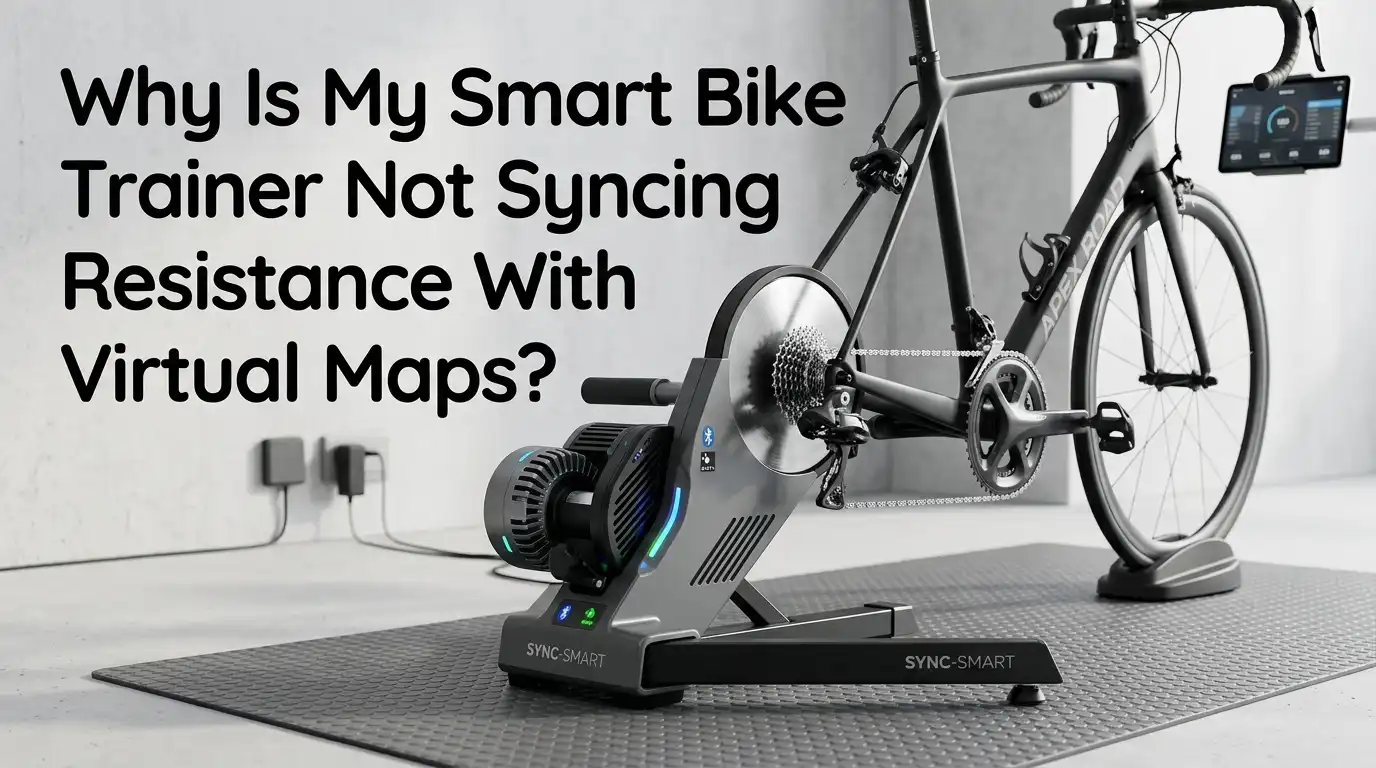
Why Is My Smart Bike Trainer Not Syncing Resistance With Virtual Maps?
You just clipped in, fired up your favorite virtual cycling app, and started pedaling through a steep mountain climb on screen. But something feels wrong. Your legs spin freely like you are riding on flat ground.
The resistance never changes. The virtual map shows a 10% gradient, yet your trainer does nothing about it. This is one of the most frustrating problems indoor cyclists face, and it happens more often than you might think.
The good news? This problem almost always has a fix. Whether you ride on Zwift, Rouvy, MyWhoosh, or any other platform, the causes behind a trainer that refuses to sync resistance with virtual terrain are predictable and solvable.
In a Nutshell
- Your trainer may not be paired as a “Resistance” or “Controllable” device. Most virtual cycling apps require you to pair your trainer separately for power reading and resistance control. If you only pair it for power, the app cannot send gradient commands to your trainer.
- Firmware and calibration problems cause many sync failures. An outdated trainer firmware version can break communication between your trainer and your cycling app. A quick firmware update through the manufacturer’s app often solves the issue immediately.
- Wireless connection conflicts between ANT+ and Bluetooth create signal problems. If your trainer connects to multiple apps or devices at the same time, it can lose the ability to receive resistance commands. Closing all other fitness apps before starting your ride is essential.
- In app settings like “Trainer Difficulty” sliders directly control how much resistance you feel. A slider set to zero means you will feel no gradient changes at all, even though your trainer is paired correctly.
- Physical factors like residual electrical current in the trainer or wireless interference from nearby devices can interrupt resistance sync. A simple power cycle of your trainer often clears these issues.
- Protocol mismatches between your trainer and your app can block resistance control entirely. Your trainer must support the correct communication protocol, such as ANT+ FE C or Bluetooth FTMS, for the app to send resistance commands.
Understanding How Smart Trainers Sync With Virtual Maps
A smart bike trainer uses wireless communication to talk with virtual cycling apps. The app reads map data and calculates the gradient of the road your avatar rides on.
It then sends a resistance command to your trainer. Your trainer adjusts its internal brake to match that gradient. This happens many times per second during a ride.
Two main protocols make this possible. ANT+ FE C (Fitness Equipment Control) and Bluetooth FTMS (Fitness Machine Service) are the standards that allow apps to control your trainer. Your trainer must support at least one of these protocols.
Without them, the app can display your power and cadence but cannot change the resistance you feel. Think of it like a one way radio versus a two way radio. Power data flows out, but resistance commands need a channel to flow back in.
Check Your Device Pairing Screen First
The most common reason for missing resistance sync is incorrect pairing. Most cycling apps have a pairing screen with multiple slots. One slot is for power source. Another is for resistance or controllable trainer. Many riders pair their trainer for power but skip the resistance slot entirely.
In Zwift, for example, the resistance tile only appears after you select a power source. If you chose “Speed Sensor” instead of your smart trainer as the power source, the resistance option may not show up at all. Always select your smart trainer as the power source first.
Then confirm it also appears under the resistance or controllable category. If both slots show your trainer’s name, you are properly set up. This single check fixes the problem for a large number of riders.
Pros of checking pairing first: It takes only 30 seconds and solves the issue most of the time.
Cons: Some apps hide the resistance pairing option, which can confuse new users.
Update Your Trainer Firmware
Outdated firmware is a silent problem. Your trainer may connect and report power numbers just fine. But old firmware can contain bugs that prevent it from receiving or processing resistance commands correctly. Trainer manufacturers release firmware updates regularly to fix exactly these kinds of issues.
Open the official app from your trainer’s manufacturer. Wahoo uses the Wahoo app. Tacx uses the Garmin Connect app or Tacx Training app. Elite uses the Elite Upgrado app. Saris uses the Saris app. Connect your trainer through Bluetooth and check for available updates.
Install any pending updates before your next ride. While you have the manufacturer’s app open, run a spindown calibration as well. This keeps your power accuracy in line and ensures the resistance unit works correctly.
Pros of firmware updates: They fix known bugs and often improve trainer responsiveness.
Cons: Updates can occasionally introduce new issues, though this is rare.
Close All Other Fitness Apps and Devices
Your smart trainer can only maintain a controllable connection with one app at a time. If you opened the Wahoo app to do a firmware check and then launched Zwift without closing Wahoo first, your trainer may still be connected to the Wahoo app. Zwift might pick up the power signal, but it will not gain control of the resistance.
This also applies to bike computers and smartwatches. If your Garmin head unit is connected to the trainer through ANT+, it could block the app on your tablet from establishing a control link. Before every ride, close all fitness apps on all your devices.
Turn off Bluetooth on your phone if you are running the cycling app on a separate computer. The fewer devices competing for your trainer’s attention, the better your resistance sync will work.
Adjust the Trainer Difficulty Slider
Many virtual cycling apps include a trainer difficulty or gradient scaling slider in their settings. This slider controls how much of the virtual gradient reaches your trainer. In Zwift, this slider defaults to 50%. That means a 10% climb on screen only sends a 5% gradient command to your trainer.
If someone set this slider to 0%, the trainer will receive zero gradient information. You will feel no resistance changes on any terrain. Go to your app’s settings and look for this slider. Move it to at least 50% for a balanced ride feel.
Set it to 100% if you want to feel the full force of every virtual hill. This setting does not affect how much power you need to cover a distance. It only changes how much gear shifting and resistance variation you experience during the ride.
Pros of adjusting this slider: Instant control over your ride feel with no hardware changes needed.
Cons: Setting it too high can make steep virtual climbs feel impossibly hard for some riders.
Power Cycle Your Smart Trainer
Sometimes the fix is wonderfully simple. Unplug your smart trainer from its power source for at least 10 seconds, then plug it back in.
Trainers that stay plugged in for long periods can build up residual electrical current. This residual charge can interfere with the trainer’s ability to process incoming resistance commands from your cycling app.
A power cycle clears the trainer’s internal memory and resets all wireless connections. After plugging it back in, wait for the trainer to fully initialize before opening your cycling app.
You will often notice that resistance sync works perfectly after this reset. Make this a regular habit, especially if your trainer sits plugged in between riding sessions. It costs nothing and takes less than a minute.
Pros: Free, fast, and effective for many sync problems.
Cons: You will need to re pair your trainer in the app after a reset in some cases.
Switch Between ANT+ and Bluetooth
Your trainer likely supports both ANT+ and Bluetooth connections. If resistance sync fails on one protocol, try the other. Bluetooth connections work well on tablets and phones. ANT+ connections work well on computers with a USB ANT+ dongle.
Bluetooth is limited to one active connection at a time on most trainers. ANT+ can broadcast to multiple devices simultaneously, but it is more prone to interference from household electronics like Wi Fi routers, microwaves, and cordless phones.
If you ride near a router or other wireless devices, try moving the ANT+ dongle closer to your trainer with a USB extension cable. Place it within one meter of the trainer for the strongest signal. Switching protocols has resolved resistance sync issues for many riders.
Pros of switching protocols: You get a fresh connection that avoids existing interference patterns.
Cons: You may need additional hardware like a USB ANT+ dongle for your computer.
Verify Your Trainer’s Compatibility With the App
Not every smart trainer works with every cycling app. Some older trainers only broadcast power data and lack the ability to receive resistance commands.
These are sometimes called “power meter mode only” trainers. Check your cycling app’s official compatibility list to confirm your trainer model is supported for full resistance control.
Apps like Zwift, Rouvy, and TrainerRoad publish detailed trainer compatibility pages on their websites. Look specifically for phrases like “controllable trainer” or “smart control supported.”
If your trainer only appears under “power source compatible,” it may not support two way communication with that app. In this case, you may need to upgrade your trainer or switch to an app that supports your specific model.
Check for Wireless Interference in Your Space
Wireless interference is an invisible problem that causes visible frustration. Bluetooth and ANT+ signals operate on the 2.4 GHz frequency band, which is the same band used by Wi Fi routers, baby monitors, wireless speakers, microwave ovens, and many other household devices.
When these signals collide, your trainer can lose its connection to the app or miss resistance commands.
Move your riding setup away from your Wi Fi router if possible. Turn off wireless speakers and other Bluetooth devices in the room. If you use a computer with a USB ANT+ dongle, place the dongle on a USB extension cable and position it close to your trainer.
Some riders report significant improvements by simply moving the dongle from the back of their PC to a spot just one meter from the trainer. Reducing the distance between transmitter and receiver makes the signal stronger and more reliable.
Check ERG Mode and Simulation Mode Settings
Virtual cycling apps typically offer two modes for trainer control. ERG mode locks your trainer to a specific wattage target, which is used during structured workouts.
Simulation mode (sometimes called SIM mode) allows the app to control resistance based on virtual terrain. If you are free riding a virtual map and your app is stuck in ERG mode, the trainer will hold a fixed resistance instead of adjusting to the terrain.
Make sure you are not accidentally running a workout while trying to free ride a virtual course. In Zwift, if you select a workout and then try to ride a route, ERG mode may override the terrain simulation.
Exit any active workout before starting a free ride. Also check whether your app has a toggle between ERG and SIM modes. Switching to SIM mode should restore terrain based resistance changes immediately.
Pros of switching to SIM mode: Your trainer responds to every gradient change on the map.
Cons: ERG mode fans may miss the steady wattage control during free rides.
Reinstall or Update Your Cycling App
App bugs cause sync issues too. Virtual cycling platforms push frequent updates, and an outdated app version can break trainer communication.
Check your device’s app store for available updates. If the problem started right after an update, other users may be experiencing the same bug. Check the app’s official forum or subreddit for reports of similar issues.
If updating does not help, try a full reinstall. Delete the app, restart your device, and install it fresh. This clears any corrupted data or settings that may have developed over time.
Log back in with your account credentials and re pair your trainer. A clean installation often restores full functionality. This approach takes a few minutes but eliminates software side problems that other steps cannot fix.
Perform a Spindown Calibration
A spindown calibration ensures your trainer’s resistance unit works accurately. Most smart trainers require periodic calibration to stay in sync with the power and resistance values they report. Without calibration, the trainer’s internal resistance model can drift, causing it to respond poorly to external commands.
Open your trainer manufacturer’s app and follow the calibration or spindown test instructions. This usually involves pedaling up to a set speed and then coasting to a stop while the app measures the deceleration.
Warm up your trainer for at least 10 minutes before calibrating for the most accurate result. A properly calibrated trainer responds more predictably to resistance commands from virtual cycling apps. Do this at least once a month or any time your resistance feel seems off.
Contact Support if Nothing Works
If you have tried every step above and your trainer still refuses to sync resistance with virtual maps, it may be time to contact the manufacturer’s support team. There could be a hardware fault with the trainer’s internal resistance motor or control board. Some trainers develop these issues after extended use or power surges.
Gather your information before reaching out. Note your trainer model, firmware version, the app you use, your device type, and the connection method (ANT+ or Bluetooth).
Describe the specific behavior you experience. Support teams can often diagnose problems quickly when they have clear details. You may also want to contact the cycling app’s support team, as they can check whether your trainer model has known compatibility issues with recent app versions.
Frequently Asked Questions
Why does my smart trainer show power but not change resistance?
Your trainer is likely paired only as a power source and not as a controllable or resistance device. Most cycling apps require separate pairing for power reading and resistance control. Go to your app’s pairing screen and make sure your trainer appears under both the power and resistance categories. If the resistance slot is empty, select your trainer there to enable two way communication.
Can I use ANT+ and Bluetooth at the same time on my trainer?
Most smart trainers support both protocols, but using both at the same time can cause conflicts. One app may grab the controllable connection through Bluetooth while another device connects through ANT+. This can prevent either app from properly controlling resistance. Stick to one protocol per session for the most reliable experience.
How often should I calibrate my smart trainer?
A spindown calibration once a month is a solid starting point. Calibrate more often if you notice resistance feeling inconsistent or if room temperature changes significantly between rides. Always warm up the trainer for 10 minutes before calibrating to get the most accurate result.
Does trainer difficulty setting affect my speed in virtual apps?
No. The trainer difficulty slider only changes how much resistance you feel from gradient changes. Your virtual speed depends on the power you produce, not the resistance setting. A rider producing 250 watts will travel at the same virtual speed regardless of whether trainer difficulty is set to 25% or 100%. The only difference is how much gear shifting and resistance variation you experience.
What should I do if my trainer resistance works in one app but not another?
This usually points to a compatibility or settings issue within the specific app. Check the non working app’s pairing screen to confirm your trainer is listed under resistance control. Also verify the app supports your trainer model for full controllable features. Some apps support fewer trainer models than others. Consult the app’s official compatibility list for confirmation.

Hi, I’m Archie Flynn, the founder and writer behind RapidResizerHub! 👋 I’m a passionate tech enthusiast who loves exploring the latest gadgets, smart devices, and trending electronics on Amazon. Through my honest, hands-on reviews and detailed buying guides, I help readers make smarter, well-informed shopping decisions.