How To Fix External GPU Enclosure Thunderbolt 5 Bandwidth Bottlenecks?
Thunderbolt 5 changed the eGPU game. It pushed bandwidth from 40Gbps on Thunderbolt 4 to 80Gbps in both directions, with bursts up to 120Gbps.
That sounds like the end of all eGPU slowdowns. But many users plug in their enclosure and still see lower frame rates than they expected.
If your external GPU feels capped, you are not imagining it. Thunderbolt 5 is fast, but it still does not match a direct PCIe x16 slot. The good news is that most bottlenecks come from fixable causes like cables, ports, drivers, and settings.
Key Takeaways
- Thunderbolt 5 gives roughly 64Gbps of usable PCIe bandwidth, which maps to about PCIe 4.0 x4. This is faster than older eGPUs but still narrower than a desktop x16 slot, so some loss is normal.
- Your cable and port are the biggest culprits. A non certified cable or a Thunderbolt 4 port silently caps your speed. Always confirm both ends support full Thunderbolt 5.
- Real world tests show eGPUs can lose anywhere from 5% to 15% versus a direct connection, and CPU heavy games suffer more than GPU heavy ones.
- Settings tuning makes a real difference. Texture streaming, resolution, and using an external monitor instead of the laptop screen all change how hard the link is pushed.
- Drivers, firmware, and BIOS power settings quietly throttle eGPUs more often than the hardware itself.
- OCuLink still beats Thunderbolt 5 by a small margin, so if your device supports it, that is the fastest option for the most demanding workloads.
What Causes Thunderbolt 5 eGPU Bandwidth Bottlenecks
A Thunderbolt 5 eGPU bottleneck happens when data cannot move fast enough between your GPU and your computer. The graphics card itself may be powerful, but the connection becomes the slow lane.
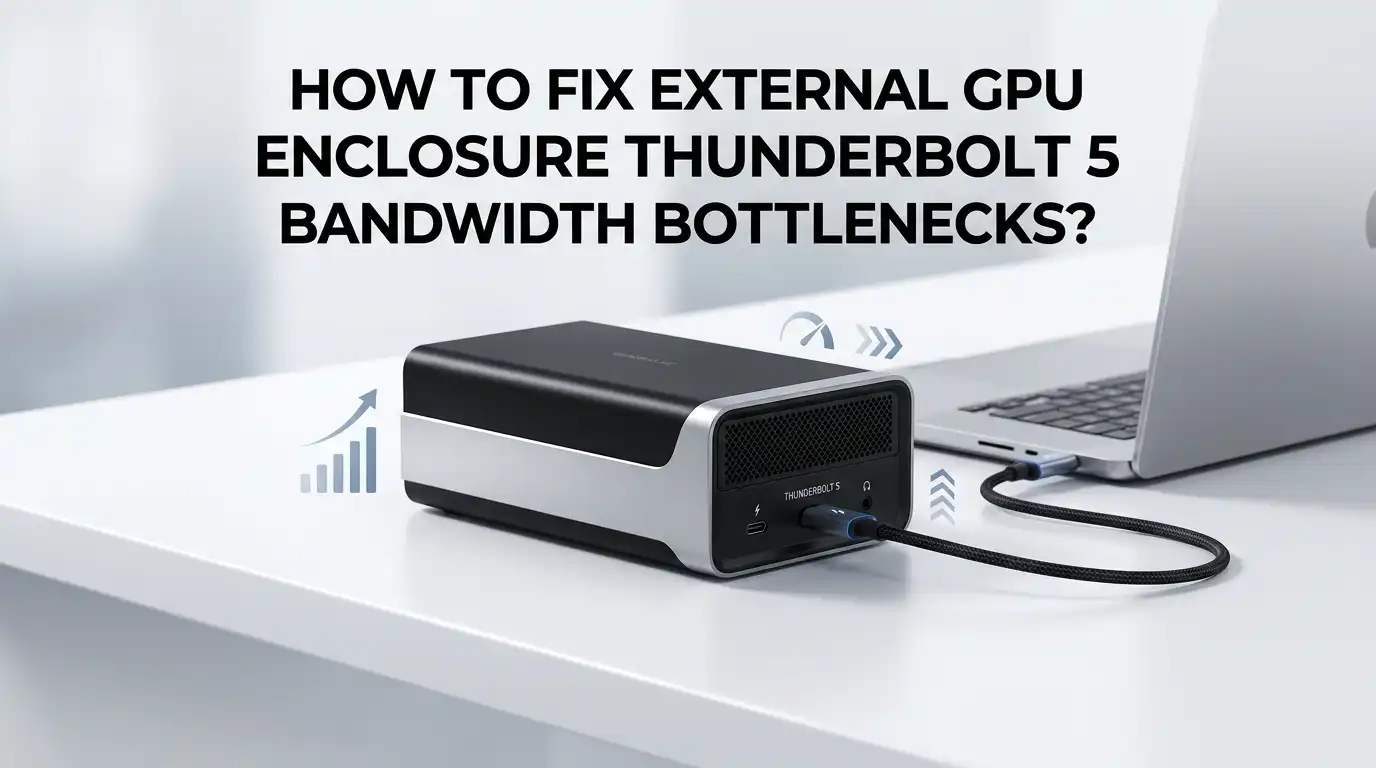
Thunderbolt 5 carries data over a PCIe tunnel. That tunnel offers around 64Gbps of usable PCIe bandwidth, which behaves like a PCIe 4.0 x4 link. A desktop GPU usually runs on a PCIe x16 slot with four times that width.
The link also adds latency. Every signal must convert from PCIe to the Thunderbolt protocol and back again. This extra hop creates small delays that hurt frame timing in fast paced games. Understanding these two limits, narrower width and added latency, helps you target the right fix instead of guessing.
Confirm Your Thunderbolt 5 Cable Is Certified
The cable is the most common hidden bottleneck. Many people reuse an old USB-C or Thunderbolt 3 cable and never realize it caps their speed. A cheap cable can quietly drop you to a fraction of full bandwidth.
Check that your cable carries the official Thunderbolt 5 logo with the number 5 next to the lightning bolt. Certified Thunderbolt 5 cables support the full 80Gbps symmetric mode and the 120Gbps boost mode.
Keep the cable short. Longer passive cables lose signal quality, and not every long cable holds full speed. A one meter certified cable is a safe choice.
Pros and Cons of upgrading your cable: the upside is a cheap, instant fix that can restore lost bandwidth. The downside is that a genuine certified cable costs more than a generic one, and counterfeit cables are common, so you must buy from trusted sellers.
Verify Your Computer Has A True Thunderbolt 5 Port
A Thunderbolt 5 enclosure plugged into a Thunderbolt 4 port will only run at Thunderbolt 4 speed. The port sets the ceiling, not the enclosure. This single mistake explains many disappointing benchmarks.
Look at your laptop or desktop spec sheet. Thunderbolt 5 ports are still new in early 2026, so confirm the exact model rather than assuming. The port may carry the Thunderbolt 5 logo printed beside it.
Some USB4 version 2 ports also reach 80Gbps and work well with these enclosures. Check whether your USB4 port supports the version 2 standard.
Pros and Cons of relying on the port check: the benefit is that it costs nothing and instantly tells you your real maximum. The drawback is that if your device lacks a true Thunderbolt 5 port, the only fix is new hardware, which is expensive and not always practical.
Update Your GPU Drivers And Enclosure Firmware
Outdated software throttles eGPUs more often than people expect. Driver bugs can prevent the card from reaching full clock speeds or cause stutters that feel like bandwidth limits.
Download the latest GPU driver straight from Nvidia, AMD, or Intel. Do a clean install so old files do not conflict. A clean driver install fixes many eGPU stutter and detection problems.
Next, check your enclosure maker’s support page for firmware updates. Enclosure controllers like the JHL9480 sometimes ship with early firmware that improves with later patches.
Pros and Cons of the update path: the strength is that updates are free and often fix real throttling and stability issues. The weakness is that a bad driver release can sometimes lower performance, so keep a known good installer ready to roll back if needed.
Use An External Monitor Instead Of The Laptop Screen
This trick saves a surprising amount of bandwidth. When your eGPU renders a frame, then sends it back to your laptop screen, that frame travels twice through the Thunderbolt link. This round trip eats into your limited bandwidth.
Plug your monitor directly into the eGPU enclosure’s video output instead. A display attached to the eGPU skips the return trip and frees up bandwidth for rendering.
Real tests show that an eGPU driving an external monitor loses far less performance than one pushing frames back to the internal display. The gap can shrink to around 5% in good setups.
Pros and Cons of this method: the upside is a clear, free performance gain and lower latency. The downside is that you need an extra monitor and desk space, which is less convenient than using the built in laptop screen.
Adjust In Game Settings That Stress The Connection
Not every graphics setting hits your Thunderbolt link the same way. Some lean hard on bandwidth, while others stay inside the GPU. Knowing which is which lets you keep visual quality where it counts.
Texture streaming and very high texture pools move large amounts of data across the link. Lowering texture streaming pressure often smooths frame delivery on an eGPU. Try medium texture streaming while keeping shadows and effects high.
Higher resolutions actually help eGPUs in a strange way. They shift the load onto the GPU, so the connection matters less per frame.
Pros and Cons of settings tuning: the benefit is free, instant smoothness with no new hardware. The cost is that you may sacrifice a little visual quality, and finding the right balance takes some trial and error per game.
Reduce CPU Bottlenecks That Look Like Bandwidth Limits
Many eGPU slowdowns are not really about bandwidth at all. The Thunderbolt connection adds CPU overhead because the processor manages the data tunnel. In CPU heavy games, this overhead drags down frame rates more than the GPU link itself.
Games like competitive shooters lean hard on the CPU. A faster CPU or fewer background tasks can lift eGPU frame rates more than any cable swap. Close unneeded apps before you play.
Some users report that newer Thunderbolt 5 docks reduce this CPU drain compared with older controllers. This is because of smarter traffic scheduling inside the chip.
Pros and Cons of targeting CPU load: the advantage is that it can unlock big gains in the right games. The limit is that you cannot easily upgrade a laptop CPU, so this fix mostly helps through software cleanup and game choice.
Check PCIe Lane Allocation And Negotiated Speed
Sometimes the link does not connect at its full advertised speed. A handshake error or a power setting can drop you to fewer lanes or a lower PCIe generation. This silently halves your bandwidth.
Use a tool like GPU-Z to read the bus interface while gaming. GPU-Z shows the active PCIe speed and width in real time. You want to see PCIe 4.0 x4 or close to it for a Thunderbolt 5 link.
If it shows a lower speed, reseat the cable, try a different port, and reboot. A cold restart often forces a fresh, correct handshake.
Pros and Cons of this check: the strength is precise data instead of guesswork, which pinpoints the real problem. The downside is that it requires extra software and some technical comfort reading the numbers correctly.
Tune Your BIOS And Power Management Settings
Your computer’s firmware can hold back an eGPU without warning. Power saving features sometimes limit Thunderbolt bandwidth or put the link into a low power state. This causes stutters and inconsistent speeds.
Enter your BIOS or UEFI and look for Thunderbolt settings. Set the Thunderbolt security level to allow trusted devices to connect automatically. Disable aggressive PCIe power saving if you find the option.
In Windows, set your power plan to high performance. This stops the system from throttling the connection during light load moments.
Pros and Cons of BIOS tuning: the benefit is more stable, consistent bandwidth with no spending. The risk is that BIOS menus differ by brand, and wrong changes can cause boot or stability issues, so move carefully and note each change.
Manage Heat To Prevent Thermal Throttling
Heat can mimic a bandwidth problem. When your GPU or the enclosure controller gets too hot, it slows down to protect itself. This thermal throttling drops frame rates even when your connection is perfect.
Make sure the enclosure has clear airflow. An eGPU box needs breathing room just like a desktop case. Keep it off carpet and away from walls.
Monitor temperatures with your GPU software. If the card hits its thermal limit, clean the dust, improve room airflow, or set a more aggressive fan curve.
Pros and Cons of thermal management: the upside is steady, sustained performance during long sessions, not just short bursts. The downside is that better cooling sometimes means more fan noise, and a poorly ventilated enclosure may need physical relocation to fix.
Compare Thunderbolt 5 Against OCuLink For Your Needs
If you have squeezed every fix and still want more, the connection type itself may be the wall. OCuLink offers a more direct PCIe path with less protocol overhead. Recent tests show it edges out Thunderbolt 5.
In gaming benchmarks with cards like the RTX 5070 Ti, Thunderbolt 5 ran around 14% slower than OCuLink on average. OCuLink sits only about 7% to 8% behind a direct motherboard slot.
That said, Thunderbolt 5 is far more convenient. It is hot swappable, carries power and video, and uses one common port.
Pros and Cons: Thunderbolt 5 wins on ease, compatibility, and single cable simplicity. OCuLink wins on raw speed and lower latency but needs special ports, is less plug and play, and does not carry power or display on its own.
When To Accept The Limit And Optimize Around It
Some bandwidth loss is simply part of how eGPUs work. No fix turns a Thunderbolt link into a full PCIe x16 slot. Once you accept this, you can plan smartly instead of chasing impossible numbers.
Pick games and tasks that suit the connection. GPU heavy work like rendering, AI tasks, and high resolution gaming hides the bottleneck well. Fast competitive shooters expose it most.
Set realistic targets. A stable 60 frames per second at high settings is a great eGPU result and often more than enough.
Pros and Cons of this mindset: the benefit is less frustration and a focus on what actually works, which improves your daily experience. The drawback is that you may give up on certain demanding titles or accept slightly lower settings than a full desktop would allow.
Frequently Asked Questions
Does Thunderbolt 5 fully remove eGPU bottlenecks?
No, it greatly reduces them but does not erase them. Thunderbolt 5 delivers about PCIe 4.0 x4 bandwidth, which is far better than older standards yet still narrower than a desktop x16 slot. Expect strong results with a small remaining gap.
How much performance do I lose with a Thunderbolt 5 eGPU?
It depends on the game and setup. Many users see between 5% and 15% loss versus a direct connection. GPU heavy and high resolution games lose the least, while CPU heavy competitive titles lose the most.
Will any USB-C cable work with my eGPU enclosure?
No. A regular USB-C cable can cap your speed badly. You need a certified Thunderbolt 5 cable to reach full 80Gbps bandwidth. Look for the Thunderbolt logo with the number 5 printed on the connector.
Is OCuLink better than Thunderbolt 5 for eGPUs?
For raw speed, yes, by a small margin. OCuLink runs roughly 14% faster than Thunderbolt 5 in gaming tests. However, Thunderbolt 5 is easier to use, carries power and video, and works on far more devices.
Why does my eGPU run slower on my laptop screen than an external monitor?
Because frames must travel back through the link to reach the laptop display. This return trip doubles the data load on the connection. Plugging a monitor into the enclosure directly frees that bandwidth and boosts frames.
Can drivers really cause eGPU bandwidth problems?
Yes. Outdated or buggy drivers cause stutters and clock drops that feel like bandwidth limits. A clean install of the latest GPU driver fixes many of these issues. Always check enclosure firmware updates too.

Hi, I’m Archie Flynn, the founder and writer behind RapidResizerHub! 👋 I’m a passionate tech enthusiast who loves exploring the latest gadgets, smart devices, and trending electronics on Amazon. Through my honest, hands-on reviews and detailed buying guides, I help readers make smarter, well-informed shopping decisions.