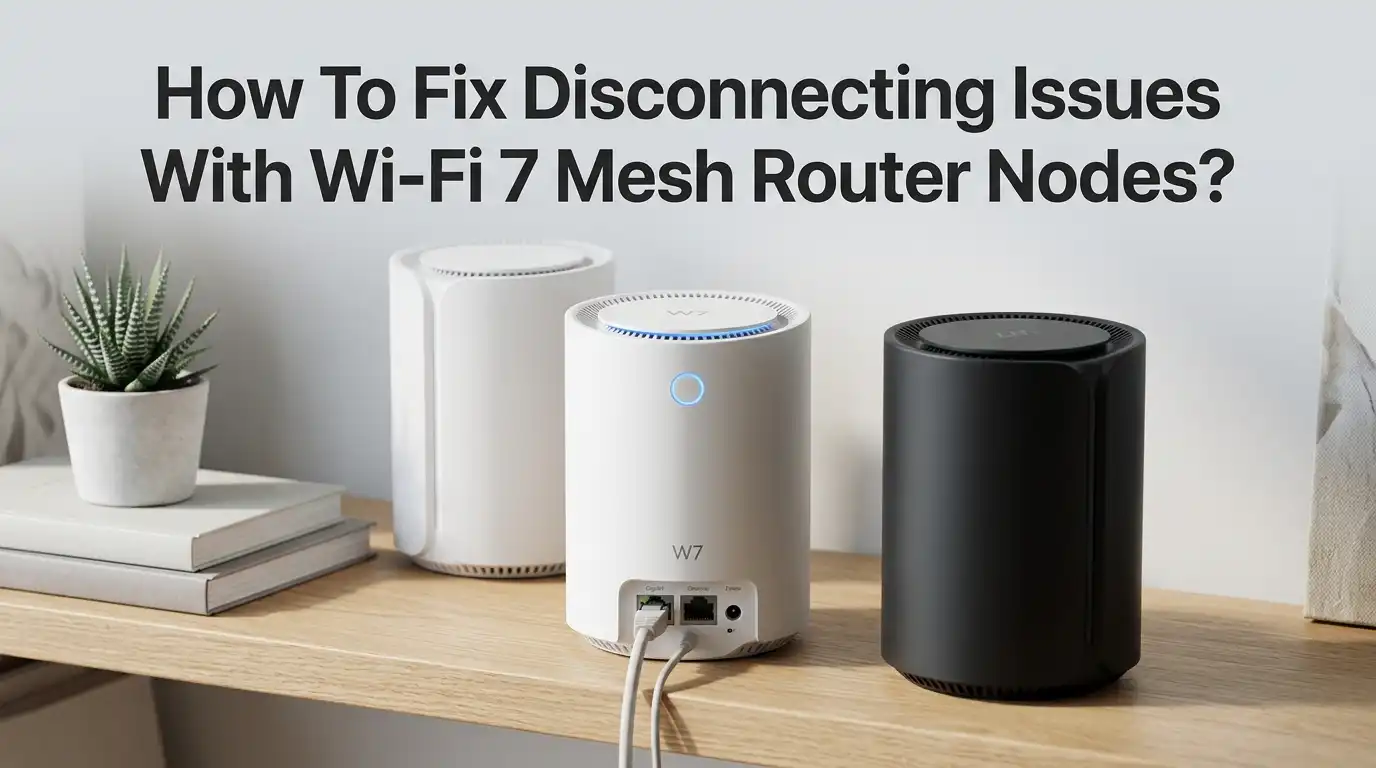
How To Fix Disconnecting Issues With Wi-Fi 7 Mesh Router Nodes?
Wi-Fi 7 mesh systems promise blazing speeds and whole home coverage. But what happens when your mesh nodes keep dropping offline? You lose video calls. Smart home devices stop responding. Streaming buffers at the worst possible moment. The frustration is real, and you are not alone.
Thousands of users who upgraded to Wi-Fi 7 mesh systems report the same problem. One or more satellite nodes disconnect randomly throughout the day.
The main router stays online, but the rest of the network falls apart. Sometimes the app shows a node going red. Other times your phone says “connected” but nothing loads.
In a Nutshell
- Node placement matters more than you think. A mesh node inside a closet, behind furniture, or too far from the main router will have a weak backhaul signal. This causes repeated disconnections. Moving a problem node to an open spot with fewer walls between it and the nearest node often fixes the issue immediately.
- Double NAT and routing conflicts are silent killers. If your ISP gateway and your Wi-Fi 7 mesh router both handle routing and DHCP, you will get random “connected but no internet” drops. Setting your ISP gateway to bridge mode or switching the mesh to access point mode eliminates this conflict.
- MLO (Multi Link Operation) can cause disconnections on many devices. Wi-Fi 7 introduced MLO to use multiple bands at once. But current firmware and client devices often handle MLO poorly. Disabling MLO has resolved constant disconnections for many users with phones, laptops, and smart home gear.
- WPA3 and Fast Roaming break older and IoT devices. Smart bulbs, cameras, and older laptops struggle with WPA3 only encryption and 802.11r fast roaming. Switching to WPA2/WPA3 mixed mode and turning off fast roaming stabilizes these devices without reducing security for newer ones.
- Firmware mismatches between nodes cause offline loops. When one node updates but another does not, the system can enter a cycle of disconnections. Always verify that every node in the mesh runs the same firmware version.
- Wireless backhaul on congested or DFS channels leads to random drops. DFS channels can force your mesh to switch frequencies when radar is detected. Choosing non DFS channels or using 6GHz dedicated backhaul keeps the connection between nodes steady and reliable.
Why Do Wi-Fi 7 Mesh Router Nodes Keep Disconnecting
Wi-Fi 7 mesh nodes disconnect for several reasons, and understanding the root cause saves you hours of guessing. The most common culprit is unstable wireless backhaul. This is the invisible link between your satellite nodes and the main router. If that link is weak or congested, the node drops offline.
Other frequent causes include double NAT conflicts with your ISP gateway, incompatible settings like WPA3 or MLO, firmware bugs, and poor node placement. Wi-Fi 7 introduces new features like Multi Link Operation and 320MHz channels that sound impressive but create real stability problems with current hardware and software.
Many users report that their network worked fine on Wi-Fi 6 but became unstable after upgrading to Wi-Fi 7. This happens because new features activate by default and conflict with older client devices. The fix usually involves adjusting specific settings rather than replacing hardware.
Pros of identifying the root cause first: You avoid unnecessary resets and save time.
Cons: It requires some patience and testing before you find the exact trigger.
Check and Improve Node Placement
Node placement is the single biggest factor in mesh stability. A satellite node placed inside a closet, behind a TV, or on the floor will struggle to maintain a solid backhaul connection. Metal shelving, mirrors, electrical panels, and dense walls block Wi-Fi signals aggressively, especially on 5GHz and 6GHz bands.
The ideal placement keeps each node in an open area, elevated about 3 to 5 feet off the ground, with no more than one or two walls between it and the nearest node. Aim for 6 to 10 meters between nodes. Too close creates interference. Too far weakens the backhaul.
A quick test can prove whether placement is your problem. Move the disconnecting node into the same room as the main router. If it stays online for 15 minutes, you have confirmed the issue is placement or obstruction. Find a new permanent spot that balances coverage and backhaul strength.
Pros: Free fix that often solves the problem instantly.
Cons: You may lose coverage in the original location until you find a better compromise spot.
Eliminate Double NAT and Routing Conflicts
Double NAT is one of the most overlooked causes of mesh Wi-Fi disconnections. It happens when your ISP modem/gateway and your mesh router both perform routing, DHCP, and NAT at the same time. This creates IP address conflicts that cause random drops, “connected but no internet” errors, and nodes going offline.
The fix is simple. Choose one device to handle routing. The best option for most homes is setting the ISP gateway to bridge mode or IP passthrough and letting the mesh router handle everything. If bridge mode is not available, you can set the mesh system to access point mode instead.
After enabling bridge mode, restart the modem first, then the main router, then each satellite node in order. This gives each device a clean start with the correct network configuration. Many users report that this single change stopped all their random disconnections.
Pros: Resolves hidden conflicts that cause intermittent drops across the whole network.
Cons: Bridge mode disables the ISP gateway’s built in Wi-Fi and some features like parental controls on that device.
Disable MLO If Nodes Drop Frequently
Multi Link Operation is a headline feature of Wi-Fi 7. It allows devices to send and receive data across multiple bands simultaneously. In theory, this boosts speed and reduces latency. In practice, MLO causes frequent disconnections on many current devices and firmware versions.
Users with systems from ASUS, TP Link, and other brands report that their Wi-Fi 7 phones disconnect every 10 to 15 minutes with MLO enabled. The connection drops completely and takes several minutes to reconnect. Disabling MLO resolves the issue immediately in most cases.
The problem exists because MLO implementation is still maturing on both the router and device side. Firmware updates from manufacturers and OS updates from Apple, Google, and Microsoft will improve this over time. For now, turning off MLO gives you a stable connection while still benefiting from other Wi-Fi 7 improvements.
Pros: Instant stability improvement for most affected users.
Cons: You lose the speed and latency benefits of multi link aggregation until future updates fix compatibility.
Switch From WPA3 Only to Mixed Security Mode
WPA3 is the newest Wi-Fi security standard, and many Wi-Fi 7 mesh systems enable it by default. However, a large number of devices cannot connect reliably with WPA3 only encryption. Smart bulbs, cameras, older laptops, gaming consoles, and IoT devices often fail to authenticate or disconnect repeatedly.
Open your mesh router app and change the security setting from WPA3 only to WPA2/WPA3 mixed mode. This allows newer devices to use WPA3 while older devices fall back to WPA2. Your network remains secure, and compatibility problems disappear.
If you recently enabled WPA3 and noticed disconnections started around the same time, this is almost certainly your fix. Some devices will connect once with WPA3 but then fail to reconnect after a brief drop, creating the illusion of a mesh problem when the real issue is a security protocol mismatch.
Pros: Maintains strong security while supporting all devices on your network.
Cons: Devices using WPA2 fallback have slightly older encryption, though it remains safe for home use.
Turn Off Fast Roaming and Aggressive Band Steering
Fast roaming, also called 802.11r, helps devices switch between mesh nodes quickly. Band steering pushes devices from 2.4GHz to 5GHz or 6GHz for faster speeds. Both features sound helpful but cause instability for many devices, especially IoT gear and older hardware.
When fast roaming is active, some devices enter a loop where they constantly bounce between nodes. This looks like repeated short disconnections. Smart home devices are particularly affected because they use simple Wi-Fi radios that cannot handle aggressive roaming commands.
Disable fast roaming and band steering in your mesh app’s advanced settings. Also disable any “Smart Connect” feature that merges all bands into one SSID if your IoT devices keep dropping. Creating a separate 2.4GHz network for smart home devices is one of the most effective ways to stop IoT disconnections on a Wi-Fi 7 mesh.
Pros: Dramatically improves stability for smart home devices and older hardware.
Cons: Manual network selection may be needed for some devices, and roaming between nodes may feel slightly slower.
Update Firmware on All Mesh Nodes
Firmware updates fix bugs, improve backhaul stability, and patch compatibility issues. A firmware mismatch between mesh nodes is a known cause of disconnection loops. One node updates automatically while another fails to download the update, and the system becomes unstable.
Open your mesh app and check the firmware version on every single node. If any node is running a different version, update it manually. After all nodes match, power cycle the entire system in order: modem first, then main router, then satellites one at a time.
Wi-Fi 7 is still a relatively new standard, and manufacturers release frequent firmware updates to address early bugs. Check for updates at least once a month. Some systems offer automatic updates, but these sometimes fail silently. Always verify the update completed on each node.
Pros: Fixes known bugs and improves overall mesh performance over time.
Cons: Occasional firmware updates can introduce new issues, so read release notes and user feedback before updating.
Use 6GHz Dedicated Backhaul and Avoid DFS Channels
The backhaul channel between your mesh nodes is the backbone of your network. If it uses a DFS (Dynamic Frequency Selection) channel on the 5GHz band, your mesh can disconnect without warning. DFS channels must go silent when radar is detected, and this forces nodes to switch channels or drop temporarily.
Wi-Fi 7 mesh systems with tri band or quad band radios can dedicate the 6GHz band exclusively for backhaul. This is the cleanest spectrum available with almost zero interference from neighbors or household devices. If your system supports this, enable dedicated 6GHz backhaul in the settings.
If your system does not have 6GHz, manually select non DFS 5GHz channels for your backhaul. Channels 36, 40, 44, and 48 are non DFS in most regions. This prevents the sudden channel switches that cause your satellite nodes to go offline for 30 seconds to several minutes.
Pros: Eliminates radar related disconnections and provides the cleanest possible backhaul link.
Cons: 6GHz has shorter range than 5GHz, so nodes may need to be placed closer together.
Consider Wired Ethernet Backhaul for Problem Nodes
Wireless backhaul is convenient but inherently less stable than a wired connection. Every wall, appliance, and competing Wi-Fi network between your mesh nodes degrades the backhaul signal. If one node keeps disconnecting despite all other fixes, a single Ethernet cable can solve the problem permanently.
Connect the problem satellite node to your main router or a network switch using a Cat5e or Cat6 Ethernet cable. Most Wi-Fi 7 mesh nodes detect the wired connection automatically and switch to Ethernet backhaul. Some systems require a reboot or a manual toggle in the app to recognize the wired link.
You do not need to wire every node. Even wiring one or two problem nodes while leaving others on wireless backhaul reduces congestion on the wireless spectrum. This improves stability for all nodes in the mesh, including the ones still using wireless backhaul.
Pros: Most reliable fix for persistent node disconnections. Frees up wireless spectrum for client devices.
Cons: Requires running a cable, which may not be practical in every home. Renters may face restrictions.
Reduce Wireless Interference From Nearby Devices
Interference from household electronics is a hidden cause of mesh node disconnections. Baby monitors, microwave ovens, wireless speakers, Bluetooth devices, and even USB 3.0 hubs emit signals that can disrupt Wi-Fi, especially on the 2.4GHz band.
Check what is near your disconnecting node. Moving the node just 3 to 6 feet away from interfering devices can make a significant difference. Avoid placing nodes directly next to TVs, soundbars, or other electronics with large metal housings that reflect and absorb Wi-Fi signals.
You can use a free Wi-Fi analyzer app on your phone to check channel congestion in your area. If your 2.4GHz channels are packed with signals from neighboring networks, switch to a less crowded channel manually. For 5GHz, choose a non DFS channel with the least overlap from nearby routers.
Pros: Removes a common but invisible source of instability.
Cons: Requires some trial and error to identify the specific source of interference.
Factory Reset and Rebuild the Mesh as a Last Resort
If you have tried every fix above and your nodes still disconnect, a clean factory reset and rebuild may be necessary. Corrupted settings, failed firmware updates, and leftover configurations from previous setups can cause persistent instability that no single setting change can fix.
Reset every node to factory defaults using the physical reset button. Then set up the mesh from scratch through the app. Add nodes one at a time and verify each one stays stable before adding the next. This process takes about 20 to 30 minutes but gives you a completely clean configuration.
Before resetting, write down your current Wi-Fi name, password, and any custom settings. After the rebuild, reconnect your devices. If one specific node still disconnects after a clean rebuild while others stay stable, that unit may have a hardware defect and should be replaced under warranty.
Pros: Clears all corrupted settings and gives you a fresh, stable starting point.
Cons: You must reconnect every device in your home to the new network, which takes time.
Test and Verify Your Network Stability
After making changes, you need to verify that the fix actually holds under real world conditions. Do not assume the problem is solved just because the network looks fine for 10 minutes. Test it the way you actually use it.
Run a video call for 30 minutes and watch for drops. Stream 4K video on a smart TV connected through a satellite node. Check your smart home devices, especially 2.4GHz cameras and bulbs, for reconnection events. Monitor the mesh app to see if any node goes red or shows “offline” during these tests.
If you see “Wi-Fi connected but no internet” during testing, try changing your DNS settings to a public provider like 1.1.1.1 or 8.8.8.8. Flaky ISP DNS servers can mimic mesh disconnection symptoms. A stable mesh with bad DNS will show a connected signal but fail to load any web pages.
Pros: Confirms that your fix works under actual usage conditions.
Cons: Requires dedicated testing time across different devices and scenarios.
When To Contact Your Manufacturer or ISP
Sometimes the problem is not your mesh system at all. ISP micro outages can cause brief internet drops that look identical to mesh disconnections. If your modem lights flicker or your ISP’s status page shows outages in your area, the mesh is not to blame.
Contact your mesh manufacturer’s support if a specific node repeatedly goes offline after a clean rebuild and proper placement. The unit may have a defective radio or power supply. Most manufacturers offer warranty replacements for nodes that fail within the first one to two years.
Reach out to your ISP if the entire network loses internet even when devices are connected directly to the modem with Ethernet. Ask them to check your line for signal issues, packet loss, or firmware problems on their gateway. Getting both your ISP and mesh manufacturer to confirm their equipment is working eliminates finger pointing and gets you to a real solution faster.
Pros: Professional support can identify hardware defects and ISP line issues you cannot test at home.
Cons: Support wait times can be long, and troubleshooting scripts may repeat steps you have already tried.
Frequently Asked Questions
Why does my Wi-Fi 7 mesh node keep going offline even though it is close to the main router?
Proximity alone does not guarantee stability. The node may be too close, causing signal interference, or settings like MLO, WPA3 only, and fast roaming may be creating conflicts. Check your firmware versions on all nodes and disable MLO temporarily. Also confirm that your ISP gateway is in bridge mode to avoid double NAT issues that cause random disconnections.
Should I disable MLO on my Wi-Fi 7 mesh system?
If your nodes or client devices disconnect frequently, yes. MLO is still a maturing feature, and many current devices and firmware versions handle it poorly. Disabling MLO provides immediate stability. You can re enable it after future firmware updates from your router manufacturer and device OS updates improve compatibility.
Can too many mesh nodes cause disconnection problems?
Yes. Too many nodes in a small area raise the wireless noise floor and create interference. Each node competes for airtime, and devices may roam aggressively between them. Remove nodes that are very close together and test whether fewer nodes provide better stability. Three to four nodes cover most homes under 3000 square feet.
What is the best backhaul setup for a Wi-Fi 7 mesh system?
Wired Ethernet backhaul is the most stable option. If wiring is not possible, use a dedicated 6GHz wireless backhaul band. Avoid using DFS channels on 5GHz for backhaul because radar detection forces channel switches that disconnect nodes. A mix of wired and wireless backhaul across different nodes also works well.
How do I know if my ISP gateway is causing mesh disconnections?
Connect a computer directly to your ISP modem or gateway with an Ethernet cable and monitor the connection for drops. If the internet cuts out on the direct wired connection, the problem is your ISP or modem, not your mesh system. Contact your ISP to check for line issues, signal degradation, or gateway firmware problems.
Why do my smart home devices disconnect but my phone stays connected?
Smart home devices like bulbs, cameras, and plugs typically only support 2.4GHz, WPA2, and basic roaming. Features like WPA3 only, fast roaming, and band steering confuse these devices. Create a separate 2.4GHz IoT network with WPA2 security and disable fast roaming on that network to keep your smart home gear connected reliably.

Hi, I’m Archie Flynn, the founder and writer behind RapidResizerHub! 👋 I’m a passionate tech enthusiast who loves exploring the latest gadgets, smart devices, and trending electronics on Amazon. Through my honest, hands-on reviews and detailed buying guides, I help readers make smarter, well-informed shopping decisions.