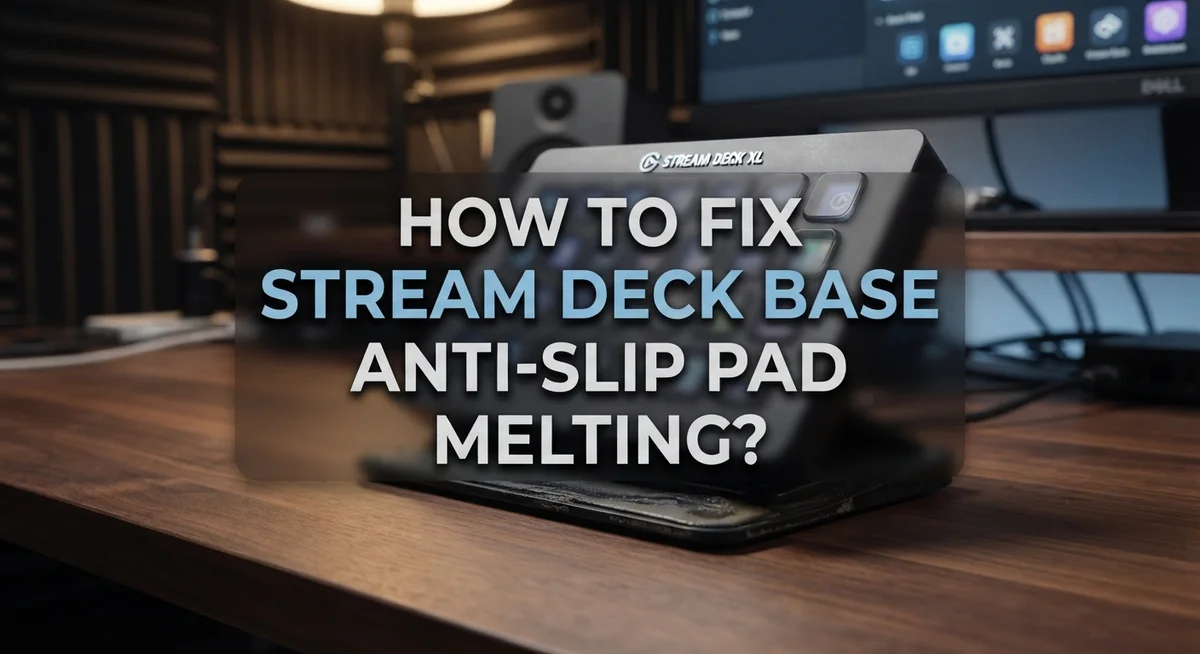
How To Fix Stream Deck Base Anti-Slip Pad Melting?
Your Stream Deck should stay put on your desk. But many users notice a sticky mess or slipping base instead.
This happens when the rubber base starts to break down. Heat, pressure, or time can cause it to melt or turn gooey.
Sound familiar? You’re not alone. This is a common issue for Stream Deck owners.
The good news? You don’t need a replacement device. A few simple fixes can solve the sliding and melting problem for good.
In a Nutshell
- The base slides because of friction loss. Smooth desks or worn rubber cause this. Button presses push the device around your desk.
- Check for a plastic film first. Many users forget to peel this off the rubber base. This simple step often solves the sliding problem right away.
- Clean the bottom surface before applying anything. Dust and grime stop pads from sticking well. A quick wipe makes a big difference.
- Anti-slip pads work best for a lasting fix. Cut a heavy duty pad to match your base size. This gives your Stream Deck strong grip without damage.
- Rubber feet are a simple backup option. Stick them to the corners of your base. They add extra height and grip on tricky surfaces.
- Press firmly for full contact. Your Stream Deck needs even contact with the desk. This keeps it stable during heavy button use.
Why Stream Deck Anti-Slip Pads Melt or Degrade
Your Stream Deck’s anti-slip pad can melt or degrade for several specific reasons. Understanding these causes helps you prevent the problem from happening again.
Heat buildup is a major culprit. The rubber base sits directly against your desk surface. When your Stream Deck runs for long periods, internal components generate warmth. This heat transfers to the rubber pad underneath. Over time, continuous heat exposure softens the rubber material. The pad loses its structure and begins to break down.
Friction and pressure also play a role. Every time you press a button, your Stream Deck moves slightly on the desk. This constant motion creates friction between the rubber pad and the work surface. The repeated sliding action wears down the rubber faster. Heavy use means more movement and more degradation.
Chemical reactions can occur too. Certain desk materials release oils or solvents. Wood finishes, plastic surfaces, and laminated tops all contain chemicals. When the rubber pad contacts these surfaces for extended periods, a chemical reaction happens. The rubber softens and becomes sticky or tacky.
Poor adhesion accelerates the problem. If the rubber pad doesn’t make full contact with your desk, pressure concentrates in small areas. These spots experience intense friction and heat. The material breaks down quickly in these zones.
Environmental factors matter as well. High humidity and temperature fluctuations affect rubber durability. Extreme heat or cold makes the material brittle. Moisture can seep into the rubber, causing it to expand and degrade.
Age and material quality also influence breakdown speed. Older Stream Deck models used different rubber formulations. Lower quality rubber degrades faster than premium materials. Natural rubber compounds break down more quickly than synthetic alternatives.
Signs Your Stream Deck Base Needs Repair
Your Stream Deck base shows clear warning signs when it needs repair. Watch for these indicators so you can act before the problem gets worse.
The most obvious sign is visible sliding or movement. When you press buttons, does your device shift across the desk? This happens because friction between the base and your work surface has decreased. The rubber may look worn, shiny, or flattened in certain spots.
Check the rubber base itself. Look for discoloration, sticky residue, or a greasy appearance. The rubber should feel firm and tacky to the touch. If it feels slippery or smooth like plastic, degradation has begun. You might also notice a faint chemical smell coming from the base.
Peel back the edges carefully. Many users discover a thin plastic protective film still attached underneath. This film prevents the rubber from making proper contact with your desk. Simply removing it solves the problem for some people.
Feel for uneven contact. Place your Stream Deck on a flat surface and try to rock it gently. Does one corner lift off? This means the base isn’t sitting flush against your desk. Uneven pressure causes certain spots to wear faster than others.
Inspect for cracks or tears. Small damage spots allow moisture and dust to get underneath. This accelerates breakdown of the remaining rubber material.
Listen for unusual sounds. A squeaking or creaking noise when you use buttons indicates the base is moving. Your Stream Deck should sit completely silent and still.
If you notice any of these signs, your base needs attention soon. Early action prevents further damage and keeps your device working properly.
How to Remove the Stream Deck from Its Base Safely
Removing your Stream Deck from its base is straightforward. You need a gentle touch to avoid damaging the device or the base itself.
First, power off your Stream Deck completely. This step protects your device and any running applications. Unplug the USB cable from the back of the unit.
Next, locate where the Stream Deck connects to the base. Most models sit on top of the base with friction or light adhesive. Look for any visible clips or connection points around the edges.
Gently lift one corner of the Stream Deck slightly. Do this slowly to feel any resistance. If the device feels stuck, do not force it. Instead, try lifting a different corner first.
Apply steady, even pressure across the edge you are lifting. Move your fingers gradually along that edge as you raise it. This distributes the force and prevents damage to the plastic housing.
Once one corner lifts free, support the device with your other hand. Continue lifting gently until the Stream Deck separates completely from the base.
Place the Stream Deck on a clean, flat surface immediately. Keep it upright to avoid pressing buttons accidentally. The USB port should face toward you for easy access later.
Inspect the base bottom where it connects to your desk. Look for any damage, residue, or melted rubber material. This is also a good time to check if a protective plastic film is still attached.
Clean both the Stream Deck bottom and the base top with a soft, dry cloth. Remove any dust or debris. This ensures good contact when you reassemble everything later.
Cleaning the Base Before Applying a New Anti-Slip Solution
Before you apply any new anti-slip solution, you must clean the base thoroughly. A dirty surface prevents new pads from sticking properly and wastes your effort.
Start by unplugging your Stream Deck completely. Safety comes first when handling electronics near water or cleaning liquids. Remove the device from its base if you haven’t already done so.
Use a soft, dry cloth to wipe the bottom surface of the base. Focus on removing dust, dirt, and any sticky residue from the old anti-slip pad. Pay special attention to the corners and edges where debris collects easily.
For stubborn residue, use a slightly damp cloth with warm water. Gently rub the affected areas in circular motions. Avoid soaking the base or letting water drip onto electronic components.
If old adhesive remains stuck to the surface, let a damp cloth sit on it for a few minutes. This softens the adhesive and makes removal easier. Then wipe it away with gentle pressure.
Allow the base to dry completely before moving forward. Moisture prevents new pads from forming a strong bond. Wait at least 30 minutes for full drying, especially if you used water.
Inspect the cleaned surface carefully. Run your finger across it to feel for any remaining roughness or debris. A smooth, clean base ensures your new anti-slip solution adheres evenly.
Check for any cracks or damage to the base itself. If you spot damage, address it before applying new pads. Small cracks can spread and weaken the base structure.
Once the base is clean and dry, you’re ready to apply your new anti-slip solution. The preparation work you do now determines how well your fix will last.
Step-by-Step: Applying a Scotch Heavy Duty Anti-Slip Pad
Scotch Heavy Duty Anti-Slip Pads work well for Stream Deck bases because they grip smooth surfaces effectively. These pads prevent your device from sliding when you press buttons during streaming or gaming sessions.
Start by measuring your Stream Deck base. You need to know the exact width and length so you cut the anti-slip pad to fit properly. Most Stream Deck bases are rectangular, so measure from corner to corner on the bottom surface.
Next, cut the anti-slip pad to match your measurements. Use sharp scissors or a utility knife for clean edges. Make sure the pad is slightly smaller than your base so it doesn’t stick out past the edges.
Peel back one corner of the protective backing on the anti-slip pad. Position that corner on the base bottom first. This gives you a starting point to work from.
Slowly peel the backing away as you press the pad down firmly. Work from one end to the other to avoid air bubbles and wrinkles. Use your fingers to smooth out any bubbles as you go.
Press down hard on the entire surface for at least 30 seconds. Apply extra pressure around all edges to ensure full contact.
Let the adhesive set for a few hours before using your Stream Deck. Some anti-slip pads need 24 hours to reach maximum grip strength.
Test the grip by placing your Stream Deck on your desk. Press buttons firmly to see if it slides. A good anti-slip pad should keep your device completely still during use. If sliding continues, the pad may not be making full contact with your work surface.
Alternative Fix: Using Sticky Rubber Feet
Sticky rubber feet offer a straightforward alternative when your Stream Deck base needs better grip. These small adhesive feet stick directly to the bottom surface and create friction points that prevent sliding.
Start by gathering your materials. You’ll need sticky rubber feet (commonly available at hardware stores), a clean cloth, and rubbing alcohol. The feet come in various sizes, so choose ones that fit your base dimensions comfortably.
Clean the base bottom thoroughly before applying anything. Use a soft cloth to remove dust and debris. Wipe the surface with a cloth slightly dampened with rubbing alcohol. This removes oils and old residue that prevent proper adhesion. Let the base dry completely for at least 15 minutes.
Position your rubber feet strategically. Most people place feet near each corner of the base. Some add one in the center for extra support. Space them evenly to distribute weight properly. Peel the backing off one foot at a time.
Press each foot firmly onto the base. Apply steady pressure for about 10 seconds per foot. Make sure the feet make full contact with the surface. Don’t rush this step, as proper adhesion matters greatly.
Allow the adhesive to set for several hours before moving your Stream Deck. This gives the feet time to bond securely.
Test your setup by placing the Stream Deck on your desk. Press buttons firmly to check if sliding occurs. The rubber feet should grip most surfaces effectively.
This method works well because it’s reversible and doesn’t damage your base permanently. If you want to remove the feet later, they peel off cleanly. Sticky rubber feet cost less than replacement bases and solve the problem quickly.
Common Mistakes to Avoid During the Fix
When fixing your Stream Deck base, several mistakes can make the problem worse instead of better. Understanding what to avoid saves you time and frustration.
Don’t skip the plastic film check. Many people forget that the rubber base comes with a protective plastic covering. This film prevents the rubber from gripping properly. Remove it completely before applying any new anti-slip solution. If you add pads over this film, they won’t stick well and will peel off quickly.
Cleaning matters more than you think. Applying new anti-slip pads to a dirty surface wastes your effort. Dust, oils, and old adhesive residue prevent strong bonding. Take time to clean the bottom thoroughly with a dry cloth first. Use a slightly damp cloth for stubborn spots, then let everything dry completely.
Avoid incompatible pad choices. Not all anti-slip products work equally on every desk surface. Some pads grip better on smooth wood while others work best on plastic or glass. Choose a solution designed for your specific surface type.
Don’t rush the adhesive setting time. Pressing your Stream Deck into use immediately after applying new pads causes them to shift and slip. Wait several hours before testing. This gives the adhesive time to bond properly.
Ensure full surface contact. Pressing pads down halfway creates weak spots where your Stream Deck can still slide. Apply firm, even pressure across the entire base for at least 30 seconds. Check that no corners or edges are lifting before you finish.
These mistakes are easy to make but equally easy to prevent with attention to detail.
Troubleshooting Persistent Sliding or Adhesion Issues
When your Stream Deck continues to slide even after applying a fix, you need to identify what’s causing the adhesion failure. The problem usually stems from one of three sources: surface contamination, incorrect pad application, or environmental factors affecting the rubber material.
Check your desk surface first. Dust, oils, or residue prevent the anti-slip pad from gripping properly. Wipe your desk with a slightly damp cloth and let it dry completely. Then clean the bottom of your Stream Deck base with rubbing alcohol on a soft cloth. This removes any fingerprints or manufacturing residue that blocks adhesion.
Inspect how firmly the pad adheres. Press down on different areas of the base bottom. If you feel soft spots or hear crackling sounds, the pad isn’t making full contact. Peel back the affected section and reapply it with stronger pressure. Hold each area down for at least one minute to ensure the adhesive bonds completely.
Consider your desk material. Smooth laminate, polished wood, and glass surfaces offer less friction than textured materials. If your desk is extremely slick, a single anti-slip pad may not provide enough grip. Adding rubber feet at strategic points (near each corner) gives multiple contact points that prevent sliding.
Monitor temperature changes. Heat causes rubber to soften and lose its grip. If your workspace gets warm from sunlight or equipment, the base material may degrade faster. Keep your Stream Deck away from heat sources when possible.
Test the fix properly. Press buttons firmly in different directions. Genuine sliding means the solution isn’t working yet. Try a different anti-slip product type or add supplementary rubber feet for better results.
Final Thoughts
Your Stream Deck should stay put once you fix the sliding problem. Anti-slip pads solve this issue quickly and safely.
The fix does not require special tools or technical skills. Anyone can clean the base and apply new grip material in minutes.
Remember to check for plastic film first. This simple step gets missed often, and it blocks any pad from working properly.
Clean surfaces make all the difference. Dust and oils stop adhesive from bonding correctly. Take time to wipe down both the base and your desk before starting.
Your desk material matters too. Glass and polished wood need stronger grip solutions than textured surfaces. Match your pad choice to your specific setup.
Give the adhesive time to cure fully. Rushing this step weakens the bond and brings back the sliding problem you tried to fix.
Test your work by pressing buttons firmly across the entire deck. A proper fix keeps the unit stable no matter where you press.
If sliding continues, don’t get frustrated. Go back through each step and check for missed spots or weak adhesion points.
Temperature changes affect rubber grip over time. Keep this in mind if your desk sits near sunlight or heating vents.
This problem has simple solutions that last. Most fixes take under thirty minutes and cost very little.
Your Stream Deck deserves a stable home on your desk. With the right anti-slip approach, it will stay firmly in place through every button press.
Take action today and enjoy a stable, reliable setup for all your streaming and productivity needs.
Frequently Asked Questions
Why does my Stream Deck slide when I press buttons?
Your Stream Deck slides because smooth desk surfaces reduce friction. When you press buttons, the force pushes your device across the surface. Polished wood, laminate, and glass desks make this problem worse. The original rubber base may not grip these smooth materials well enough.
Can heat actually melt the anti-slip pad?
Yes, heat can soften rubber and reduce its grip. Direct sunlight, warm rooms, or placing your Stream Deck near heat sources causes the rubber to lose its stickiness. Temperature changes make the adhesive weaker over time. Keep your device away from heat and direct sunlight to maintain pad performance.
What should I do before applying a new anti-slip pad?
Clean your Stream Deck base thoroughly first. Dust, oils, and desk residue prevent adhesive from bonding properly. Use a dry cloth to wipe the bottom surface. Check if a protective plastic film covers the original rubber base and remove it if present. A clean surface makes the new pad stick much better.
How long should I wait before using my Stream Deck after applying a fix?
Give the adhesive at least 24 hours to cure fully. Pressing your Stream Deck into use too soon weakens the bond. This waiting period lets the pad set properly on your desk surface. Patience now prevents sliding problems later.
What if the sliding continues after I apply a new pad?
Check your desk material first for dust or oils. Press down on different areas of the pad to ensure full contact. Test the fix by pressing buttons firmly in different directions. If problems persist, your desk surface may need rougher texture, or you may need a different type of anti-slip solution.

Hi, I’m Archie Flynn, the founder and writer behind RapidResizerHub! 👋 I’m a passionate tech enthusiast who loves exploring the latest gadgets, smart devices, and trending electronics on Amazon. Through my honest, hands-on reviews and detailed buying guides, I help readers make smarter, well-informed shopping decisions.