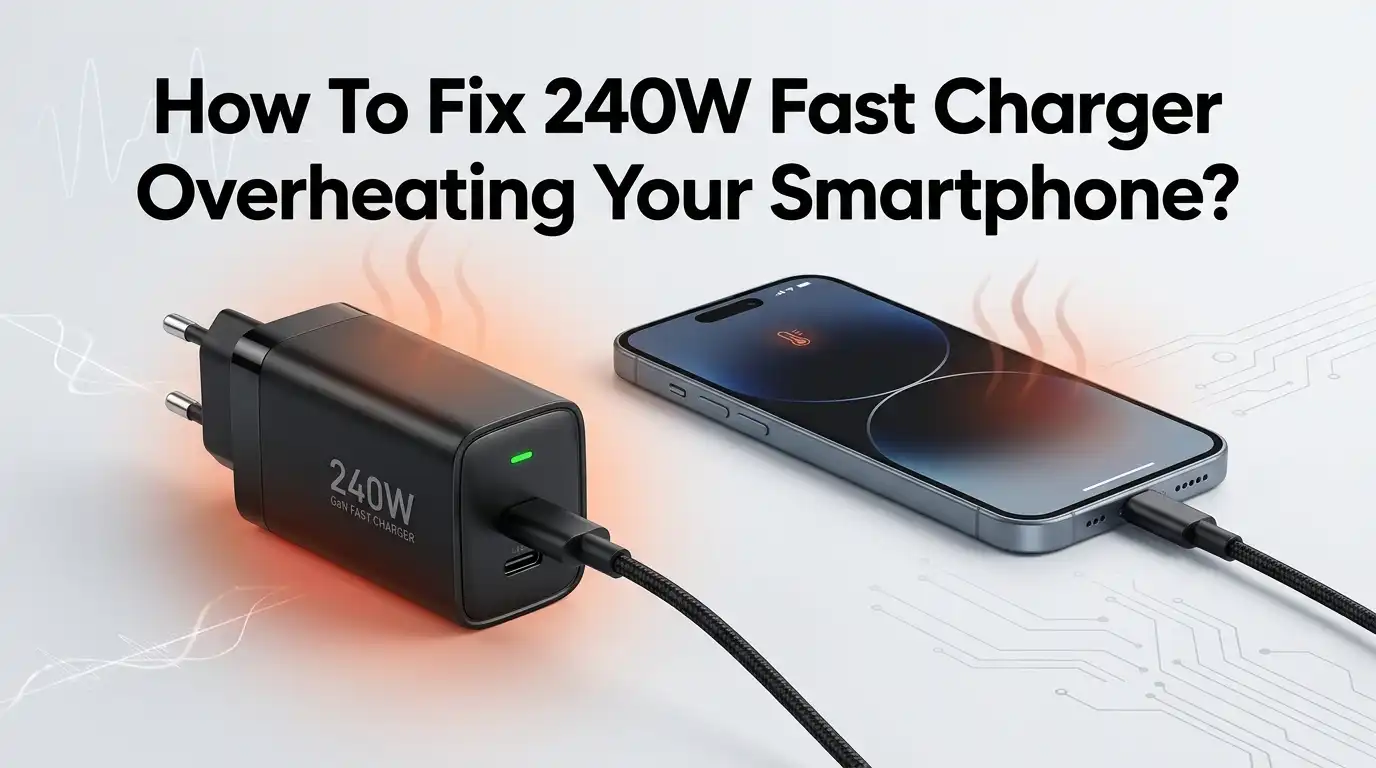
How To Fix 240W Fast Charger Overheating Your Smartphone?
You just plugged your phone into a 240W fast charger, and minutes later, the back of your device feels like a hot pan. Your heart races. You wonder if the battery is about to swell or if your phone will survive.
This is a real problem that thousands of smartphone users face every day. A 240W charger is built to push serious power through a cable.
Your phone, however, only draws the wattage it needs. Still, the heat that builds up during this process can feel alarming and even cause genuine damage over time.
In a Nutshell
- A 240W charger does not force 240 watts into your phone. Your smartphone negotiates with the charger and only pulls the wattage it supports, such as 25W, 45W, or 65W. The charger itself can still generate extra heat because of its high power capacity, and that warmth transfers through the cable and connection point.
- Heat during fast charging is normal up to a point. Smartphones operate safely between 0°C and 35°C (32°F to 95°F). If your device temperature rises above 40°C (104°F), the phone will start to throttle performance and slow down charging. Anything above 45°C (113°F) during regular charging sessions signals a problem you must address.
- The most common causes of overheating include poor ventilation, damaged cables, background apps, cheap accessories, and charging in hot environments. Each cause has a specific fix that takes only a few minutes to apply. Removing your phone case, closing apps, and switching to a certified cable can drop temperatures significantly.
- Long term overheating degrades your battery faster than anything else. Heat accelerates chemical reactions inside lithium ion cells. A phone that repeatedly charges at high temperatures can lose 20% or more of its battery capacity within a single year. Fixing the heat problem now saves you from expensive battery replacements later.
- You do not need to stop using your 240W charger entirely. The charger is safe if you follow the right practices. Use the original cable, charge in a cool room, avoid heavy phone use while plugged in, and keep the charging port clean. These small habits make a big difference.
- Software settings on your phone can reduce heat buildup. Features like optimized battery charging, airplane mode, and background app restrictions lower the energy demand on your device while it charges. These settings are free, easy to activate, and immediately effective.
Why Does a 240W Charger Generate So Much Heat
A 240W charger is designed to power laptops, tablets, and phones through a single USB C connection. It uses GaN (gallium nitride) technology to pack enormous power into a compact body. The charger converts AC power from your wall outlet into DC power for your device. This conversion process always produces heat.
Your smartphone does not pull 240 watts. It only draws what its charging circuit allows. A Samsung phone might pull 25W or 45W. A recent OnePlus or Realme device might pull up to 100W or even 150W. The charger handles the rest of its capacity as idle overhead, but the internal components still run warm because of the high voltage rails they maintain.
The cable also plays a role. A 240W rated cable carries thicker conductors and can handle more current. If the connection between the cable and the phone port is loose or dirty, electrical resistance increases. Resistance creates heat at the contact point, and that heat transfers directly to your phone.
Pros: A 240W charger offers universal compatibility and can charge multiple device types.
Cons: The high power capacity means the charger body runs warmer, and poor cable connections cause heat to spike quickly.
How Your Smartphone Regulates Charging Power
Modern smartphones contain a charge management IC (integrated circuit) that controls how much power enters the battery. This chip communicates with the charger through the USB Power Delivery protocol. Your phone tells the charger exactly what voltage and current it needs at each stage of the charge cycle.
During the first phase, called constant current charging, the phone pulls maximum power to fill the battery quickly from 0% to about 70%. This is the phase where heat builds up the most. After that, the phone switches to constant voltage charging, where it gradually reduces the current as the battery fills to 100%.
If the phone detects that its internal temperature is too high, it will automatically reduce the charging speed. This is called thermal throttling. You might notice your phone charging slower during a hot day or after heavy use. That slowdown is your phone protecting itself.
Pros: Built in thermal management prevents most serious damage automatically.
Cons: Thermal throttling extends charging time, and the phone does not always alert you that it has reduced speed.
Remove Your Phone Case While Charging
This is one of the fastest fixes you can apply right now. Phone cases, especially thick silicone or rubber ones, trap heat against the back of your device. The back panel of your phone is one of its primary heat dissipation surfaces. A thick case blocks that surface from releasing heat into the air.
Take your case off before you plug in the charger. Place the phone on a hard, flat surface like a desk or countertop. This allows air to circulate around the device and carry heat away. Avoid placing your phone on a bed, pillow, couch, or any fabric surface. Soft materials insulate heat and make the problem worse.
Some users report a temperature drop of 3°C to 5°C just by removing their case during charging. That might not sound like a lot, but it can be the difference between safe charging and thermal throttling.
Pros: Free, instant, and effective. No tools or settings changes needed.
Cons: Leaves your phone without drop protection during the charging session.
Check Your Cable for Damage
A damaged cable is a silent troublemaker. If the insulation is cracked, the wires inside are bent, or the USB C connector wobbles when plugged in, electrical resistance rises at the damage point. Higher resistance means more energy is lost as heat instead of flowing cleanly into your battery.
Inspect your cable from end to end. Look for kinks, fraying, exposed metal, or any section where the cable feels thinner than the rest. Wiggle both connectors gently. If they feel loose in the charger or in your phone, the contact is poor and you should replace the cable.
Always use a cable rated for the wattage your charger delivers. A cable rated for 60W will struggle and overheat when paired with a 240W charger, even if the phone only draws 45W. Look for cables with an “EPR” (Extended Power Range) rating or a clear 240W specification on the packaging.
Pros: Replacing a faulty cable is cheap and immediately solves connection related heat issues.
Cons: Damage is not always visible. Internal wire breaks can be hard to detect without a second cable for comparison.
Clean Your Phone’s Charging Port
Dust, lint, and pocket debris collect inside your charging port over time. This buildup creates a poor connection between the cable and the phone. The charger has to push harder to deliver power through a dirty contact, and that extra effort generates heat.
Turn off your phone before cleaning the port. Use a soft bristled brush, a wooden toothpick, or a can of compressed air to gently remove debris. Do not use metal objects like needles or paperclips. Metal can short circuit the pins inside the port and cause permanent damage.
After cleaning, plug in your cable and check if it clicks firmly into place. A snug connection ensures smooth power transfer with minimal resistance and minimal heat. If the port still feels loose after cleaning, a technician should inspect it for physical damage.
Pros: Quick maintenance that improves charging speed and reduces heat.
Cons: Aggressive cleaning can damage the port. Use gentle pressure only.
Stop Using Your Phone While It Charges
This habit is one of the biggest heat generators. Your phone’s processor, GPU, screen, and radios all produce heat during active use. Charging adds heat from the battery side at the same time. The combined load pushes your phone’s temperature up fast.
Gaming, video streaming, GPS navigation, and video calls are the worst offenders. These tasks demand peak performance from your processor and screen. When you run them during charging, you force the phone to manage two heavy heat sources at once.
Put your phone down while it charges. If you must check a message, keep the interaction brief. For the fastest and coolest charge, enable airplane mode or power off your device entirely. Airplane mode shuts down Wi Fi, cellular, Bluetooth, and GPS radios. This cuts energy demand significantly and allows the charger to fill the battery with less heat.
Pros: Dramatically reduces heat and speeds up charging time.
Cons: You cannot use your phone during the charging session.
Close Background Apps and Disable Background Refresh
Apps running in the background consume CPU cycles and keep your phone active even when the screen is off. Services like cloud photo syncing, email fetching, social media refreshes, and system updates all run quietly in the background. Each active process adds a small amount of heat, and together they add up.
Before you plug in your charger, swipe away all recent apps. Then go into your phone’s settings and disable background app refresh for apps that do not need real time updates. On an iPhone, go to Settings, then General, then Background App Refresh, and toggle it off. On Android, go to Settings, then Battery, and check which apps are consuming the most energy.
You can also check for rogue apps that crash repeatedly and restart themselves in a loop. These apps drain power and create heat continuously. Uninstall any app that you suspect is behaving this way.
Pros: Reduces processor workload and heat with no cost and no hardware changes.
Cons: You may miss real time notifications or updates from disabled apps until you re enable them.
Charge in a Cool Environment
The room temperature where you charge your phone matters more than most people realize. Charging in a hot car, near a sunny window, or in an unventilated room adds environmental heat on top of the heat your phone already produces internally. The combined effect can push your phone past safe temperature limits quickly.
The ideal charging environment is a room between 20°C and 25°C (68°F to 77°F) with decent airflow. Place your phone on a hard surface in a shaded area. If you live in a warm climate, charge your phone in an air conditioned room or during cooler evening hours.
A small desk fan pointed at your phone during charging can also help. The moving air carries heat away from the device surface and keeps temperatures stable. Some users even place their phones on laptop cooling pads for extra airflow during fast charging sessions.
Pros: A cooler room can lower phone temperature by 5°C or more during charging.
Cons: You may not always have access to a cool or air conditioned space.
Use Optimized or Adaptive Charging Settings
Most modern smartphones include a built in feature that manages charging speed and heat. Apple calls it Optimized Battery Charging. Samsung calls it Adaptive Charging. Google Pixel devices have a similar feature. These settings learn your charging habits and slow down the charge rate during off peak hours to reduce heat and extend battery life.
On an iPhone, go to Settings, then Battery, then Battery Health and Charging, and enable Optimized Battery Charging. On a Samsung Galaxy, go to Settings, then Battery and Device Care, then Battery, then More Battery Settings, and enable Adaptive Charging.
These features are especially helpful if you charge overnight. Instead of filling to 100% quickly and then sitting at full charge for hours, your phone charges slowly and reaches 100% just before your alarm goes off. This reduces heat and protects battery longevity.
Pros: Set it once and forget it. The phone handles everything automatically.
Cons: If you need a fast charge in a hurry, this feature may slow things down until you disable it.
Switch to a Lower Wattage Charger for Daily Use
You do not need 240W for everyday phone charging. A 240W charger is built to handle laptops and multi device setups. For your phone, a 25W to 45W charger provides fast charging without generating as much heat. The lower power output means less energy conversion, less resistance heat, and a cooler charging experience.
Keep your 240W charger for situations where you need to charge a laptop and phone at the same time, or when you are traveling with multiple devices. For daily phone charging at home or at your desk, a dedicated lower wattage charger is the smarter choice.
Many phone manufacturers include a charger in the box (or recommend a specific wattage) for good reason. That wattage is optimized for their battery chemistry and thermal management system. Sticking to the recommended wattage keeps your phone within its designed operating temperature.
Pros: Lower heat, longer battery lifespan, and a charger that runs cooler to the touch.
Cons: Slower charging speed compared to the maximum your phone supports.
Monitor Your Battery Health Regularly
Your phone tracks its own battery health. A degraded battery generates more heat during charging because its internal resistance increases as the cells wear out. A battery at 80% health or lower will run noticeably warmer than a fresh battery during the same charging cycle.
On an iPhone, go to Settings, then Battery, then Battery Health and Charging to check your maximum capacity. On many Android phones, go to Settings, then Battery, and look for battery health or battery condition data. Some Android devices require a third party app to see detailed health statistics.
If your battery health has dropped below 80%, consider getting a battery replacement from an authorized service center. A new battery will charge cooler, hold more charge, and perform better overall. Continuing to fast charge a severely degraded battery only accelerates the damage and increases the overheating risk.
Pros: Helps you catch battery degradation early before it causes serious heat or safety problems.
Cons: Battery health data can vary in accuracy depending on your phone model and software version.
Update Your Phone’s Software
Software updates often include thermal management improvements and bug fixes that address overheating. Manufacturers study real world charging data and push patches that optimize how the phone manages power flow, processor activity, and charging speed during high temperature conditions.
Go to your phone’s settings and check for available updates. Install any pending system updates and also update your apps through the app store. An outdated app with a memory leak or a stuck background process can cause your phone to heat up repeatedly during every charging session.
After updating, restart your phone and charge it again. Compare the temperature to your previous experience. Many users report a noticeable improvement after installing a system update that specifically targets charging behavior.
Pros: Free, easy to do, and can solve overheating caused by software bugs.
Cons: Updates occasionally introduce new bugs. Check user reviews before installing a major update if you are concerned.
Know When to Seek Professional Help
If you have tried every solution above and your phone still overheats during charging, the problem may be hardware related. A faulty charging IC, a swollen battery, or a damaged motherboard can all cause persistent heat that no software fix or accessory swap will solve.
Warning signs include the phone getting hot even when not charging, a battery that visibly bulges or pushes against the back panel, a screen that flickers or discolors during charging, and a phone that shuts down randomly. Do not ignore these signs. They point to internal damage that can become a safety hazard.
Take your phone to an authorized service center for diagnosis. Explain the overheating pattern, including when it started and what you have already tried. A technician can run hardware diagnostics and identify the exact component causing the heat. Replacing a faulty part is far cheaper than replacing an entire phone.
Pros: Professional diagnosis catches problems that DIY troubleshooting cannot.
Cons: Repair costs can vary, and the phone may need to be sent away for several days.
Frequently Asked Questions
Can a 240W charger damage my phone’s battery?
A 240W charger does not force 240 watts into your phone. Your phone’s charge management chip negotiates the exact wattage it needs. The charger only delivers what the phone requests. However, if the cable is damaged, the port is dirty, or the charger is a low quality product without proper safety circuits, the uneven power delivery can generate excess heat. That heat is what damages the battery over time, not the charger’s wattage rating itself.
What is the safe temperature range for charging a smartphone?
Most smartphone manufacturers recommend charging between 0°C and 35°C (32°F to 95°F). Internal phone temperatures can safely reach about 40°C during fast charging. If the temperature exceeds 45°C regularly, you risk accelerating battery degradation and causing permanent capacity loss. Use a temperature monitoring app if your phone does not display charging temperature natively.
Should I stop using my 240W charger entirely?
No. A 240W charger is safe to use with your smartphone as long as you follow good charging practices. Use a certified cable, charge in a cool room, remove your phone case, and avoid heavy phone use while plugged in. Reserve the 240W charger for multi device or laptop charging situations, and consider using a lower wattage charger for daily phone charging to minimize heat.
Does airplane mode really reduce charging heat?
Yes. Airplane mode disables Wi Fi, cellular data, Bluetooth, and GPS. These radios consume power and generate heat even when you are not actively using them. Turning on airplane mode reduces the total energy demand on your phone, which means less heat during charging and a faster charge overall.
How often should I clean my phone’s charging port?
Check your charging port once a month. If you carry your phone in a pocket or bag without a port cover, lint and dust will accumulate faster. A quick cleaning with compressed air or a soft brush takes less than a minute and can prevent connection problems, slow charging, and heat buildup at the port.
When should I replace my phone’s battery?
Replace your battery when its health drops below 80% of its original capacity. At this level, the battery’s internal resistance is high enough to cause noticeable heat during charging and shorter usage time between charges. An authorized service center can test your battery and replace it with a genuine part that restores safe, cool charging performance.

Hi, I’m Archie Flynn, the founder and writer behind RapidResizerHub! 👋 I’m a passionate tech enthusiast who loves exploring the latest gadgets, smart devices, and trending electronics on Amazon. Through my honest, hands-on reviews and detailed buying guides, I help readers make smarter, well-informed shopping decisions.