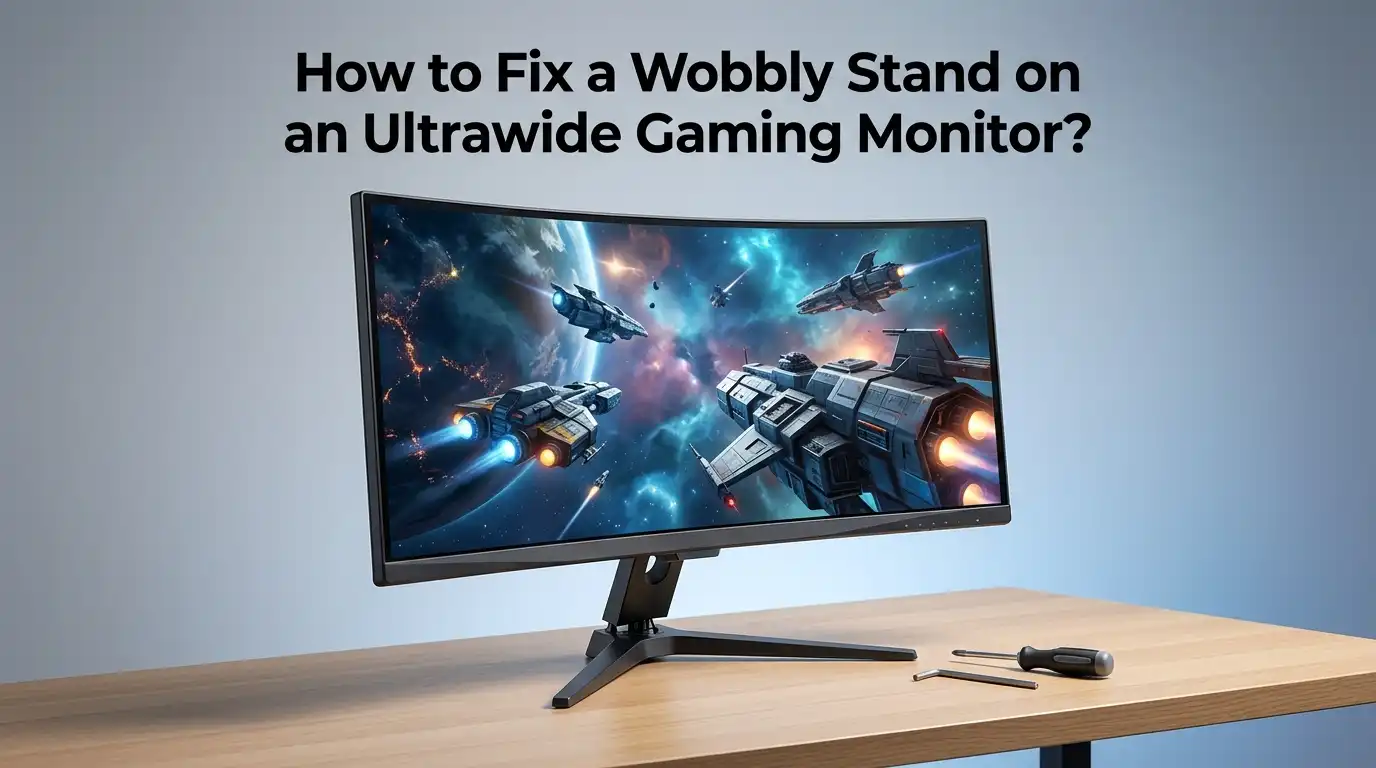
How to Fix a Wobbly Stand on an Ultrawide Gaming Monitor?
A wobbly ultrawide gaming monitor can ruin your gameplay, slow your productivity, and stress you out every time you bump the desk. The screen shakes, the image blurs, and your aim suffers in fast paced games.
Ultrawide monitors carry more weight and width than regular displays, so even small flaws in the stand cause big wobble problems. The good news is that most wobble issues have quick, low cost fixes.
This guide walks you through every cause and every solution in plain language. You will learn how to tighten, brace, replace, and upgrade your setup step by step. By the end, your monitor will sit rock steady, no matter how hard you type or click.
Key Takeaways
- Loose screws are the top cause of monitor wobble. Always check the VESA bolts, the stand neck, and the base plate first. A simple Phillips screwdriver fixes most cases in under ten minutes.
- Ultrawide monitors are heavier and wider than standard displays, so the stock stand often struggles. The longer screen acts like a lever and amplifies any small wiggle into a big shake.
- Your desk matters as much as the stand. A thin, hollow, or uneven desk transfers every vibration to the monitor. Heavy desks with thick tops give the best stability for ultrawide screens.
- A heavy duty VESA monitor arm clamped to the desk often solves wobble that stock stands cannot fix. Look for arms rated above your monitor weight, with a clamp mount and a short reach.
- Felt pads, rubber feet, and shims can level an uneven base and stop the rocking motion. These cheap fixes work well when the stand itself is fine but the surface is not.
- Cable tension and bad cable routing pull the monitor backward and cause slow tipping. Always leave slack in your HDMI, DisplayPort, and power cables.
- Replacing the stand is the last resort, but sometimes the only real fix. Cheap stock stands on budget ultrawide monitors often need an upgrade for a stable setup.
Why Ultrawide Monitors Wobble More Than Regular Ones
Ultrawide gaming monitors are wider and heavier than standard 16:9 screens. Many models weigh between 15 and 30 pounds, and some curved 49 inch giants weigh over 40 pounds.
The wider the screen, the longer the lever arm that pushes and pulls on the stand. This means even a tiny push at the edge creates a big force at the base. Most stock stands are designed as a one size fits all part, and they often cannot handle this load well.
Cheap plastic joints, thin metal necks, and small bases all add to the problem. Knowing this helps you understand why the fix often goes beyond simple tightening.
Check the Surface Under Your Monitor First
Before you blame the stand, look at the desk. A wobbly desk will always cause a wobbly monitor, no matter how strong the stand is. Press down on each corner of the desk and see if it rocks or flexes. Many cheap desks have hollow tops or weak legs that bend under weight.
Tighten every bolt on the desk frame, including the leg bolts, cross braces, and top mounting screws. If the desk top is uneven, slide a folded piece of cardboard or a felt pad under the short leg. A level, sturdy surface is the base of every stable monitor setup.
Pros: Free, quick, and often solves the issue right away. No tools needed beyond a screwdriver.
Cons: Will not help if the stand itself is the weak point. A very cheap desk may still flex even after tightening.
Tighten All the Screws on the Stand
This is the most common fix and the one most people skip. Over time, screws loosen due to micro vibrations from typing, mousing, and daily movement. Flip the monitor face down on a soft towel and look at every screw on the stand.
Use a Phillips or hex key to tighten the bolts that join the base to the neck, and the neck to the VESA plate. Tighten in a star pattern, not in a circle, so the pressure spreads evenly.
Do not overtighten, since this can strip the threads or crack plastic parts. After tightening, lift the monitor back up and test for movement.
Pros: Costs nothing and solves wobble in most older setups within minutes.
Cons: Plastic threads can strip if you force the screws too hard.
Inspect the VESA Mount and Bolts
The VESA mount is the metal plate on the back of the monitor where the stand attaches. Loose VESA bolts are a hidden cause of wobble that many users miss. Remove the back cover or stand if needed, and check each of the four VESA screws.
Replace any stripped or missing bolts with the correct size, usually M4 or M6 depending on your monitor. Add a small washer if the bolt feels loose in the hole.
Tighten them in an X pattern, just like car lug nuts, so the pressure stays even. A tight VESA connection removes the back and forth nod that ultrawide monitors often show.
Pros: Fixes the nodding motion that stand tightening alone cannot.
Cons: You may need to buy spare VESA bolts, and the wrong size can damage the threads inside the monitor.
Level the Base With Felt Pads or Shims
If three legs of the stand touch the desk but one floats, the monitor will rock. This is called a four point contact problem, and it is very common with wide flat bases. Test by gently pressing each corner of the base and feeling for movement.
Stick felt pads, rubber feet, or thin cardboard shims under the short corner until all four points touch. Felt pads also reduce vibration travel from the desk to the monitor.
Make sure to clean the desk and the base before sticking anything on. This simple trick can stop side to side rocking without any tools or new parts.
Pros: Very cheap, easy to try, and works well on hard desks like glass or laminate.
Cons: Pads can wear out over time and may need to be replaced once or twice a year.
Fix Cable Drag and Tension
Cables can pull on the back of your monitor and create slow tilting or wobble. Stiff HDMI and DisplayPort cables are the worst offenders, since they hold their shape and push the screen forward or backward.
Leave a gentle loop of slack in each cable before it reaches the desk edge. Do not pull cables tight or route them at sharp angles behind the stand. Use velcro straps or a cable tray to hold cables together without putting strain on the monitor.
If you use a heavy braided power cable, support its weight with a clip on the desk leg. Good cable management keeps the stand free to do its job.
Pros: Improves both stability and the look of your setup. Free if you already own velcro ties.
Cons: Takes some time to route cables neatly, and you may need to redo it when adding new gear.
Add a Weight to the Base for Extra Stability
If your stand has a wide flat base, you can press it down with extra weight to reduce wobble. Place a heavy book, a small sandbag, or a metal plate on top of the base, behind the monitor.
This shifts the center of gravity down and forward, which calms the rocking motion. Make sure the weight does not block any vents or buttons on the back of the monitor.
Some users glue a thin metal sheet to the base for a clean look. This trick works best for tripod style stands that lift off the desk in the back. It will not help much with solid pillar style stands.
Pros: Cheap, reversible, and surprisingly effective for tall ultrawide stands.
Cons: Adds clutter to your desk and may not match your setup style.
Switch to a Heavy Duty Monitor Arm
A heavy duty monitor arm is often the best long term fix for ultrawide wobble. A good arm clamps directly to the desk edge, removing the weak stock base from the picture.
Pick an arm rated for more weight than your monitor, ideally with 10 to 20 percent of headroom. Look for VESA 100×100 support, gas spring or mechanical lift, and a steel build.
Mount the arm as close to the back of the desk as possible to reduce the lever effect. Tighten the desk clamp firmly, but use a soft pad to protect the desk surface. A solid arm can hold a 34 or 38 inch ultrawide with almost zero wobble.
Pros: Adds height adjustment, frees up desk space, and gives rock solid stability.
Cons: Costs more than other fixes, and a cheap arm can actually bounce more than the stock stand.
Use a Wall Mount Instead of a Desk Stand
If your desk is too thin or your arm still bounces, a wall mount is the most stable option. A wall mount transfers all the weight to the wall studs, so typing and mousing never reach the monitor.
Locate two wall studs behind your desk and use lag bolts rated for your monitor weight. Make sure the mount has VESA 100×100 or 200×100 support for larger ultrawides.
Some wall mounts include tilt and swivel, while others stay fixed. Always measure the cable reach before drilling, since the monitor may sit farther from the desk. This option is great for renters with permission or homeowners who want a permanent fix.
Pros: The most stable mounting method, with zero desk wobble transfer.
Cons: Leaves holes in the wall and limits how easily you can move the monitor.
Upgrade to a Stronger Third Party Stand
Sometimes the stock stand is just too weak for the monitor it ships with. Many budget ultrawide brands save money on the stand even when the screen itself is great.
A third party heavy duty stand with a thick steel pole and a wide base can replace the stock one. Look for stands that support your screen size, weight, and VESA pattern. Check user reviews for stability comments before buying, since marketing claims often hide bounce issues.
A good stand should feel solid when you push on the top corners. This fix is cheaper than an arm and easier to install for many users.
Pros: Easier setup than a wall mount or arm, and often cheaper than premium arms.
Cons: Takes up the same desk space as the original stand, with no clamp benefits.
Stop Standing Desk Bounce and Floor Vibration
Standing desks often wobble more than fixed desks because of their tall, narrow legs. The taller the desk, the more it sways when you type or shift your weight.
Lower the desk to its shortest stable height when not standing, and avoid leaning on it. Add cross braces or anti wobble kits made for your desk model, since many brands sell these as add ons. Place the desk on a thick rug or anti vibration mat to soak up floor shakes.
If your floor bounces when people walk, move the desk to a corner where joists meet. These steps reduce the wobble that reaches your monitor in the first place.
Pros: Improves the whole setup, not just the monitor stability.
Cons: Cross braces can limit legroom, and rugs may not fit every room style.
When to Contact the Manufacturer for a Replacement
If your monitor is new and the stand wobbles right out of the box, it may be a factory defect. Check the warranty terms on the brand website, since most ultrawide monitors come with at least a one year warranty.
Take clear photos and a short video showing the wobble during normal use. Contact support through email or chat, and describe the issue in simple words.
Many brands will ship a new stand for free if the problem is on their side. Keep the original box and packing until the issue is solved. This route saves money and avoids buying parts you should not need.
Pros: Free fix if the warranty covers it, with no DIY work needed.
Cons: Can take weeks to ship, and some brands may push back before agreeing to help.
Frequently Asked Questions
Is it normal for an ultrawide monitor to wobble a little?
A small amount of wobble after a hard bump is normal, especially with very large screens. However, wobble during typing or mousing is not normal and points to a loose part or weak stand. Tighten all screws first, then test again before buying new parts.
Will a monitor arm always reduce wobble more than a stock stand?
Not always. A cheap monitor arm can wobble even more than a stock stand, especially with heavy ultrawide monitors. Pick an arm rated for at least your monitor weight, with a steel build and a strong desk clamp, for the best results.
Can a glass desk cause my ultrawide monitor to wobble?
Yes, glass desks often add wobble because the smooth surface lets the base slide and the thin top flexes under weight. Add felt or rubber pads under the stand, and consider a clamp mount arm anchored to the desk edge for better stability.
How tight should I make the VESA screws on my monitor?
Tighten the VESA screws until they feel snug, then give them a small extra turn. Do not force them, since the threads inside the monitor are often soft metal that can strip. Use an X pattern so the pressure stays even across the plate.
Do curved ultrawide monitors wobble more than flat ones?
Curved and flat ultrawide monitors wobble about the same, since the weight and width are what matter most. The curve does not change the lever effect on the stand. Focus on the stand strength, the desk stability, and the cable tension to fix the problem.

Hi, I’m Archie Flynn, the founder and writer behind RapidResizerHub! 👋 I’m a passionate tech enthusiast who loves exploring the latest gadgets, smart devices, and trending electronics on Amazon. Through my honest, hands-on reviews and detailed buying guides, I help readers make smarter, well-informed shopping decisions.